Is the hard drive of your PC giving you a tough time with painfully longer load times? Hard drives also need optimization especially the conventional SATA drives that fragment data over the course of time. Fragmentation is basically when the drives use the vacant storage slots to store data but this method can result in cluttering and adversely affect the performance of your drive. But here are some steps that you can follow to check the health and optimize your hard drives on Windows 10.
How to Defragment and Optimize Hard Drive
Open the Start menu and type defrag in the search bar. Click on the Defragment and Optimize Drives app to proceed.
SSDs cannot be defragmented as they do not have any moving parts. Click on the SSD and select Optimize to initiate the trimming process which clears out the footprint of the formerly stored data to improve performance.
The trimming process might take a few seconds to finish up.
On the other hand, when you click on the Hard disk drive or HDD partition then it will provide the option to Analyze. Click on it to continue.
The system will analyze the selected HDD drive on your PC.
Simply click on Optimize to defragment the selected partition if the analysis results display the Status as Needs Optimization. You can also automate this process on a Weekly or Monthly basis by selecting Change settings.
Check the box of Run on a schedule (recommended) under the Optimization schedule menu and click on OK to save the changes.
Using Check Disk (CHKDSK)
Open File Explorer by pressing the Windows key + E. Right-click on the drive or partition that you wish to check and select Properties.
Switch to the Tools tab to continue.
Click on the Check option to fire up the Error-checking wizard.
Since your PC can also automatically perform the Check Disk operation from time to time, it would inform you that You don’t need to scan this drive. Select the Scan drive option to continue.
It would take a couple of minutes to complete the error checking process.
Using WMIC
Open the Start menu and type cmd in the search bar. Click on the Command Prompt app to continue.
Type the command wmic and press Enter.
Input the second command diskdrive get status and press Enter again to execute the command.
The system would automatically display the health status of all the hard drives mounted on your Windows 10 PC as OK. This means that the drives are functioning at their optimum capacity.
These are some simple steps to check the health and optimize your hard drive on Windows 10. If all of these tests and optimizing methods still do not reflect any issues with the hard drive then your hard drive might not be the culprit behind the lag and slow performance after all.
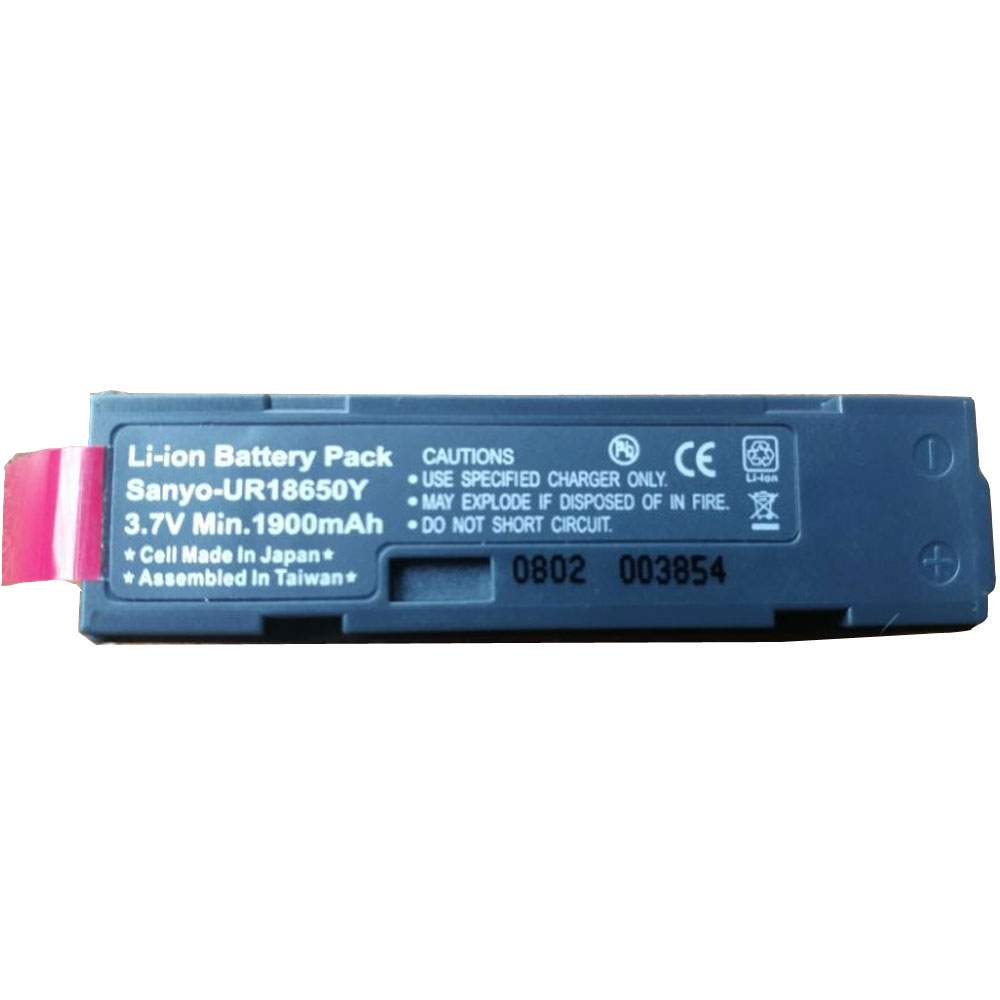
Find the right battery for Motorola/Symbol P360, P370, P460 & P470 Scanners 10pcs to solve your power issues. Our Motorola 50-14000079 batteries are manufactured to precisely fit just as your original battery.
We use the highest quality Li-ion cells and components that are lighter weight, charge faster and last longer.
US Motorola battery shop – Tech-Battery.com ! Shopping with us is safe and secure! 100% Guarantee Quality and Fully Test!
Motorola 50-14000079 Battery For Motorola – Battery For Motorola Scanner Li-ion 1900MAH 3.7V. Browse our various categories and find out why we have been the go-to source for our customers.
Chemistry: Li-ion
Voltage: 1900MAH
Capacity: 3.7V
Free shipping in most countries. click here to view detailed shipping costs.
We ship to the worldwide,please enquiry shipping & handling if you are out of united states.
What’s the total delivery time? (please use this formula to determine when your order will arrive) total delivery time = packaging time + shipping time.
Motorola 50-14000079 Motorola battery is replacement for Motorola/Symbol P360, P370, P460 & P470 Scanners 10pcs. The 50-14000079 batteries equivalent is guaranteed to meet or exceed Motorola original specifications. All Motorola 50-14000079 Battery are brand new, 1 year Warranty, 100% Guarantee Quality and Fully Test!
We deliver quality Motorola Scanner extended batteries online. Purchase your Motorola Scanner battery here.
Motorola 50-14000079 Motorola Batteries
100% OEM Compatible with your Motorola Scanner.
Lithium Ion battery technology
Convenient and secure online purchasing
Dependable high quality Motorola batteries
Satisfaction guaranteed or your money back
1 Year Warranty on all Motorola Scanner Replacement Batteries
6 tips to increase 50-14000079 Motorola Battery lifetime
The performance of your Motorola depends largely on the performance of your battery. And his time of life depends on its users, and that you are. These are the principles that have guided the Motorola , at the head, so you can optimize the performance of Motorola Scanner battery. New battery still fully charged 50-14000079 sold. You must be on the first wheel to be conditioned for optimum performance. Loading and unloading of the battery 4 or 5 times is enough to determine. The memory effect completely to avoid a full charge and discharge the battery, Motorola 50-14000079 twice a month. The dirt on the Motorola 50-14000079 contacts of the battery can power the Motorola Scanner batteries. Clean with alcohol and cotton can look like and function like new. This method is recommended for those using the AC adapter for long periods. We recommend that you use the Motorola 50-14000079 battery at least once in two weeks. Batteries lose its charge when stored for a long time and you need the battery if it does break. If he does not use a length of time, the Motorola 50-14000079 battery will be stored protected from a clean, dry and cool, heat and other metals. A loss of business to charge the battery in time and need a break before reuse. Power Management Features Battery 50-14000079 enable the conservation of energy in the battery of Motorola Scanner. You can control the speed of the processor off, or you can adjust the brightness of the LCD screen to a minimum to ensure low power consumption.
Why we have been the go-to source for our customers ?
We stock a wide range of rechargeable batteries for Motorola Scanner. Your Motorola Tablet PC is part of your everyday life. Successful communications on a Motorola begin with your battery. When purchasing a replacement battery for your Motorola Motorola, dependability and price are what we have to offer. We’ve been supplying reliable, high quality Motorola batteries for over 10 years. Our goal is to provide high quality aftermarket replacement batteries at a very reasonable price. All of our rechargeable Li-Ion Motorola batteries are backed by a one year warranty.
What is the run time of Motorola battery?
Motorola batteries have two main ratings on them: Volts and Amperes. Because size and weight of batteries is limited when compared to larger batteries such as car batteries, most companies show their ratings with Volts and Milliamperes. One thousand Milliamperes equals 1 Ampere. When buying a battery, select batteries with the most Milliamperes (or mAh). Batteries are also rated by Watt-Hours, perhaps the simplest rating of all. This is found by multiplying the Volts and the Amperes together. For example:
14.4 Volts, 4000mAh (Note: 4000mAh is equal to 4.0 Amperes).
14.4 x 4.0 = 57.60 Watt-Hours
Watt-Hours signifies the energy needed to power one watt for one hour.
Find the right battery for Motorola/Symbol SM-4701 SM4701 SYM360 SM470i 5pcs to solve your power issues. Our Motorola 50-1400079 batteries are manufactured to precisely fit just as your original battery.
We use the highest quality Li-ion cells and components that are lighter weight, charge faster and last longer.
US Motorola battery shop – Tech-Battery.com ! Shopping with us is safe and secure! 100% Guarantee Quality and Fully Test!
Motorola 50-1400079 Battery For Motorola – Battery For Motorola Scanner Li-ion 1900MAH 3.7V. Browse our various categories and find out why we have been the go-to source for our customers.
Chemistry: Li-ion
Voltage: 1900MAH
Capacity: 3.7V
Free shipping in most countries. click here to view detailed shipping costs.
We ship to the worldwide,please enquiry shipping & handling if you are out of united states.
What’s the total delivery time? (please use this formula to determine when your order will arrive) total delivery time = packaging time + shipping time.
Motorola 50-1400079 Motorola battery is replacement for Motorola/Symbol SM-4701 SM4701 SYM360 SM470i 5pcs. The 50-1400079 batteries equivalent is guaranteed to meet or exceed Motorola original specifications. All Motorola 50-1400079 Battery are brand new, 1 year Warranty, 100% Guarantee Quality and Fully Test!
We deliver quality Motorola Scanner extended batteries online. Purchase your Motorola Scanner battery here.
Motorola 50-1400079 Motorola Batteries
100% OEM Compatible with your Motorola Scanner.
Lithium Ion battery technology
Convenient and secure online purchasing
Dependable high quality Motorola batteries
Satisfaction guaranteed or your money back
1 Year Warranty on all Motorola Scanner Replacement Batteries
6 tips to increase 50-1400079 Motorola Battery lifetime
The performance of your Motorola depends largely on the performance of your battery. And his time of life depends on its users, and that you are. These are the principles that have guided the Motorola , at the head, so you can optimize the performance of Motorola Scanner battery. New battery still fully charged 50-1400079 sold. You must be on the first wheel to be conditioned for optimum performance. Loading and unloading of the battery 4 or 5 times is enough to determine. The memory effect completely to avoid a full charge and discharge the battery, Motorola 50-1400079 twice a month. The dirt on the Motorola 50-1400079 contacts of the battery can power the Motorola Scanner batteries. Clean with alcohol and cotton can look like and function like new. This method is recommended for those using the AC adapter for long periods. We recommend that you use the Motorola 50-1400079 battery at least once in two weeks. Batteries lose its charge when stored for a long time and you need the battery if it does break. If he does not use a length of time, the Motorola 50-1400079 battery will be stored protected from a clean, dry and cool, heat and other metals. A loss of business to charge the battery in time and need a break before reuse. Power Management Features Battery 50-1400079 enable the conservation of energy in the battery of Motorola Scanner. You can control the speed of the processor off, or you can adjust the brightness of the LCD screen to a minimum to ensure low power consumption.
Why we have been the go-to source for our customers ?
We stock a wide range of rechargeable batteries for Motorola Scanner. Your Motorola Tablet PC is part of your everyday life. Successful communications on a Motorola begin with your battery. When purchasing a replacement battery for your Motorola Motorola, dependability and price are what we have to offer. We’ve been supplying reliable, high quality Motorola batteries for over 10 years. Our goal is to provide high quality aftermarket replacement batteries at a very reasonable price. All of our rechargeable Li-Ion Motorola batteries are backed by a one year warranty.
What is the run time of Motorola battery?
Motorola batteries have two main ratings on them: Volts and Amperes. Because size and weight of batteries is limited when compared to larger batteries such as car batteries, most companies show their ratings with Volts and Milliamperes. One thousand Milliamperes equals 1 Ampere. When buying a battery, select batteries with the most Milliamperes (or mAh). Batteries are also rated by Watt-Hours, perhaps the simplest rating of all. This is found by multiplying the Volts and the Amperes together. For example:
14.4 Volts, 4000mAh (Note: 4000mAh is equal to 4.0 Amperes).
14.4 x 4.0 = 57.60 Watt-Hours
Watt-Hours signifies the energy needed to power one watt for one hour.
Find the right battery for Motorola/Symbol P360, P370, P460 & P470 Scanners to solve your power issues. Our Motorola 50-1400-079 batteries are manufactured to precisely fit just as your original battery.
We use the highest quality Li-ion cells and components that are lighter weight, charge faster and last longer.
US Motorola battery shop – Tech-Battery.com ! Shopping with us is safe and secure! 100% Guarantee Quality and Fully Test!
Motorola 50-1400-079 Battery For Motorola – Battery For Motorola Scanner Li-ion 1900MAH 3.7V. Browse our various categories and find out why we have been the go-to source for our customers.
Chemistry: Li-ion
Voltage: 1900MAH
Capacity: 3.7V
Free shipping in most countries. click here to view detailed shipping costs.
We ship to the worldwide,please enquiry shipping & handling if you are out of united states.
What’s the total delivery time? (please use this formula to determine when your order will arrive) total delivery time = packaging time + shipping time.
Motorola 50-1400-079 Motorola battery is replacement for Motorola/Symbol P360, P370, P460 & P470 Scanners. The 50-1400-079 batteries equivalent is guaranteed to meet or exceed Motorola original specifications. All Motorola 50-1400-079 Battery are brand new, 1 year Warranty, 100% Guarantee Quality and Fully Test!
We deliver quality Motorola Scanner extended batteries online. Purchase your Motorola Scanner battery here.
Motorola 50-1400-079 Motorola Batteries
100% OEM Compatible with your Motorola Scanner.
Lithium Ion battery technology
Convenient and secure online purchasing
Dependable high quality Motorola batteries
Satisfaction guaranteed or your money back
1 Year Warranty on all Motorola Scanner Replacement Batteries
6 tips to increase 50-1400-079 Motorola Battery lifetime
The performance of your Motorola depends largely on the performance of your battery. And his time of life depends on its users, and that you are. These are the principles that have guided the Motorola , at the head, so you can optimize the performance of Motorola Scanner battery. New battery still fully charged 50-1400-079 sold. You must be on the first wheel to be conditioned for optimum performance. Loading and unloading of the battery 4 or 5 times is enough to determine. The memory effect completely to avoid a full charge and discharge the battery, Motorola 50-1400-079 twice a month. The dirt on the Motorola 50-1400-079 contacts of the battery can power the Motorola Scanner batteries. Clean with alcohol and cotton can look like and function like new. This method is recommended for those using the AC adapter for long periods. We recommend that you use the Motorola 50-1400-079 battery at least once in two weeks. Batteries lose its charge when stored for a long time and you need the battery if it does break. If he does not use a length of time, the Motorola 50-1400-079 battery will be stored protected from a clean, dry and cool, heat and other metals. A loss of business to charge the battery in time and need a break before reuse. Power Management Features Battery 50-1400-079 enable the conservation of energy in the battery of Motorola Scanner. You can control the speed of the processor off, or you can adjust the brightness of the LCD screen to a minimum to ensure low power consumption.
Why we have been the go-to source for our customers ?
We stock a wide range of rechargeable batteries for Motorola Scanner. Your Motorola Tablet PC is part of your everyday life. Successful communications on a Motorola begin with your battery. When purchasing a replacement battery for your Motorola Motorola, dependability and price are what we have to offer. We’ve been supplying reliable, high quality Motorola batteries for over 10 years. Our goal is to provide high quality aftermarket replacement batteries at a very reasonable price. All of our rechargeable Li-Ion Motorola batteries are backed by a one year warranty.
What is the run time of Motorola battery?
Motorola batteries have two main ratings on them: Volts and Amperes. Because size and weight of batteries is limited when compared to larger batteries such as car batteries, most companies show their ratings with Volts and Milliamperes. One thousand Milliamperes equals 1 Ampere. When buying a battery, select batteries with the most Milliamperes (or mAh). Batteries are also rated by Watt-Hours, perhaps the simplest rating of all. This is found by multiplying the Volts and the Amperes together. For example:
14.4 Volts, 4000mAh (Note: 4000mAh is equal to 4.0 Amperes).
14.4 x 4.0 = 57.60 Watt-Hours
Watt-Hours signifies the energy needed to power one watt for one hour.
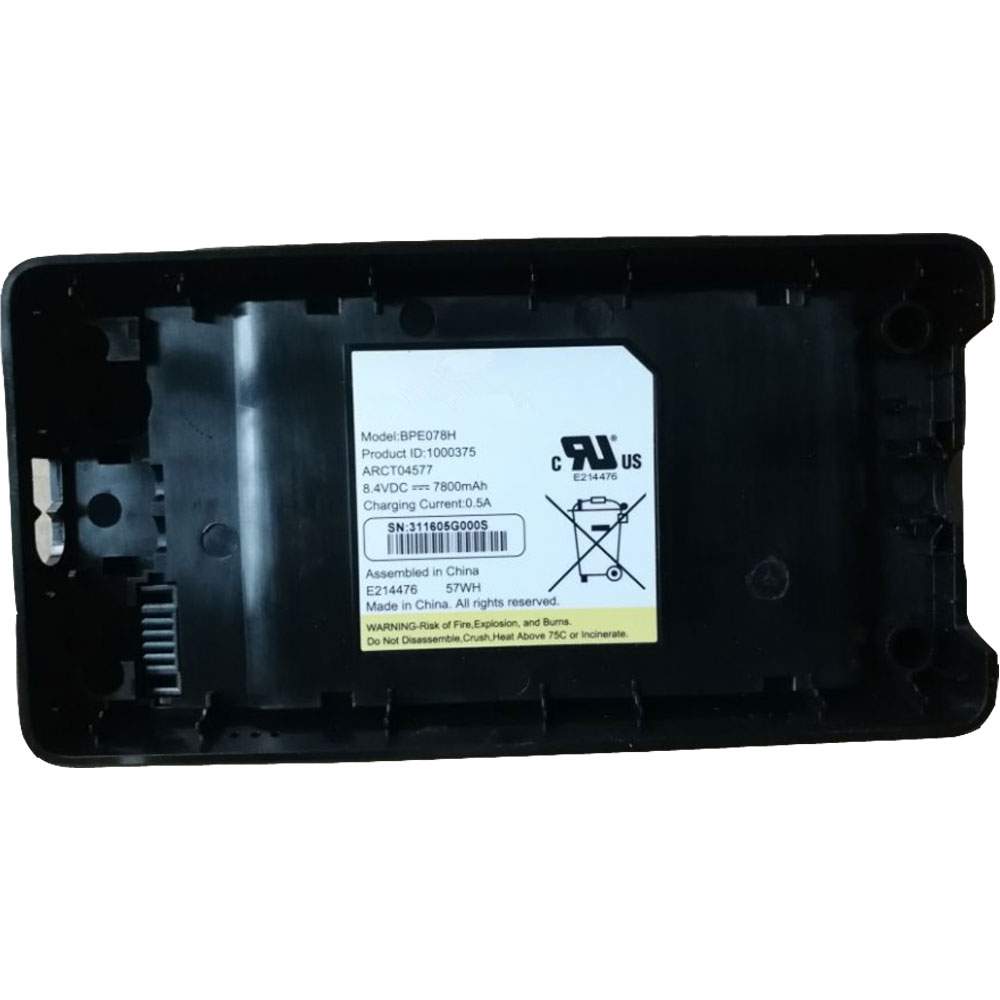
Find the right battery for ARRIS ARCT04577 1000375 to solve your power issues. Our ARRIS BPE078H batteries are manufactured to precisely fit just as your original battery.
We use the highest quality Li-ion cells and components that are lighter weight, charge faster and last longer.
US ARRIS battery shop – Tech-Battery.com ! Shopping with us is safe and secure! 100% Guarantee Quality and Fully Test!
ARRIS BPE078H Battery For ARRIS – Battery For ARRIS laptop Li-ion 7800mAh 8.4V/0.5A. Browse our various categories and find out why we have been the go-to source for our customers.
Chemistry: Li-ion
Voltage: 7800mAh
Capacity: 8.4V/0.5A
Free shipping in most countries. click here to view detailed shipping costs.
We ship to the worldwide,please enquiry shipping & handling if you are out of united states.
What’s the total delivery time? (please use this formula to determine when your order will arrive) total delivery time = packaging time + shipping time.
ARRIS BPE078H ARRIS battery is replacement for ARRIS ARCT04577 1000375. The BPE078H batteries equivalent is guaranteed to meet or exceed ARRIS original specifications. All ARRIS BPE078H Battery are brand new, 1 year Warranty, 100% Guarantee Quality and Fully Test!
We deliver quality ARRIS laptop extended batteries online. Purchase your ARRIS laptop battery here.
ARRIS BPE078H ARRIS Batteries
100% OEM Compatible with your ARRIS laptop.
Lithium Ion battery technology
Convenient and secure online purchasing
Dependable high quality ARRIS batteries
Satisfaction guaranteed or your money back
1 Year Warranty on all ARRIS laptop Replacement Batteries
6 tips to increase BPE078H ARRIS Battery lifetime
The performance of your ARRIS depends largely on the performance of your battery. And his time of life depends on its users, and that you are. These are the principles that have guided the ARRIS , at the head, so you can optimize the performance of ARRIS laptop battery. New battery still fully charged BPE078H sold. You must be on the first wheel to be conditioned for optimum performance. Loading and unloading of the battery 4 or 5 times is enough to determine. The memory effect completely to avoid a full charge and discharge the battery, ARRIS BPE078H twice a month. The dirt on the ARRIS BPE078H contacts of the battery can power the ARRIS laptop batteries. Clean with alcohol and cotton can look like and function like new. This method is recommended for those using the AC adapter for long periods. We recommend that you use the ARRIS BPE078H battery at least once in two weeks. Batteries lose its charge when stored for a long time and you need the battery if it does break. If he does not use a length of time, the ARRIS BPE078H battery will be stored protected from a clean, dry and cool, heat and other metals. A loss of business to charge the battery in time and need a break before reuse. Power Management Features Battery BPE078H enable the conservation of energy in the battery of ARRIS laptop. You can control the speed of the processor off, or you can adjust the brightness of the LCD screen to a minimum to ensure low power consumption.
Why we have been the go-to source for our customers ?
We stock a wide range of rechargeable batteries for ARRIS laptop. Your ARRIS Tablet PC is part of your everyday life. Successful communications on a ARRIS begin with your battery. When purchasing a replacement battery for your ARRIS ARRIS, dependability and price are what we have to offer. We’ve been supplying reliable, high quality ARRIS batteries for over 10 years. Our goal is to provide high quality aftermarket replacement batteries at a very reasonable price. All of our rechargeable Li-Ion ARRIS batteries are backed by a one year warranty.
What is the run time of ARRIS battery?
ARRIS batteries have two main ratings on them: Volts and Amperes. Because size and weight of batteries is limited when compared to larger batteries such as car batteries, most companies show their ratings with Volts and Milliamperes. One thousand Milliamperes equals 1 Ampere. When buying a battery, select batteries with the most Milliamperes (or mAh). Batteries are also rated by Watt-Hours, perhaps the simplest rating of all. This is found by multiplying the Volts and the Amperes together. For example:
14.4 Volts, 4000mAh (Note: 4000mAh is equal to 4.0 Amperes).
14.4 x 4.0 = 57.60 Watt-Hours
Watt-Hours signifies the energy needed to power one watt for one hour.
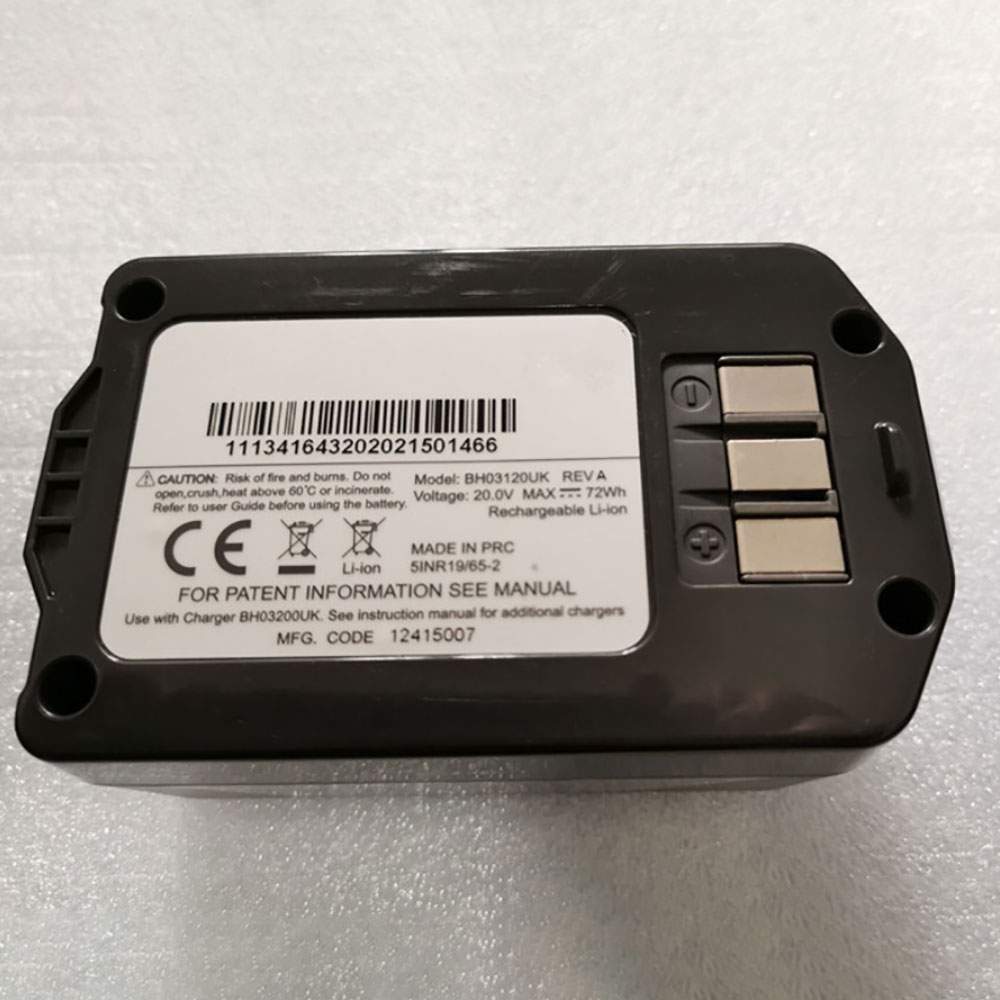
Find the right battery for Vax Air Cordless BH03120UK to solve your power issues. Our Vax BH03120UK batteries are manufactured to precisely fit just as your original battery.
We use the highest quality Li-ion cells and components that are lighter weight, charge faster and last longer.
US Vax battery shop – Tech-Battery.com ! Shopping with us is safe and secure! 100% Guarantee Quality and Fully Test!
Vax BH03120UK Battery For Vax – Battery For Vax Tools Li-ion 72Wh /3.6Ah 20V. Browse our various categories and find out why we have been the go-to source for our customers.
Chemistry: Li-ion
Voltage: 72Wh /3.6Ah
Capacity: 20V
Free shipping in most countries. click here to view detailed shipping costs.
We ship to the worldwide,please enquiry shipping & handling if you are out of united states.
What’s the total delivery time? (please use this formula to determine when your order will arrive) total delivery time = packaging time + shipping time.
Vax BH03120UK Vax battery is replacement for Vax Air Cordless BH03120UK. The BH03120UK batteries equivalent is guaranteed to meet or exceed Vax original specifications. All Vax BH03120UK Battery are brand new, 1 year Warranty, 100% Guarantee Quality and Fully Test!
We deliver quality Vax Tools extended batteries online. Purchase your Vax Tools battery here.
Vax BH03120UK Vax Batteries
100% OEM Compatible with your Vax Tools.
Lithium Ion battery technology
Convenient and secure online purchasing
Dependable high quality Vax batteries
Satisfaction guaranteed or your money back
1 Year Warranty on all Vax Tools Replacement Batteries
6 tips to increase BH03120UK Vax Battery lifetime
The performance of your Vax depends largely on the performance of your battery. And his time of life depends on its users, and that you are. These are the principles that have guided the Vax , at the head, so you can optimize the performance of Vax Tools battery. New battery still fully charged BH03120UK sold. You must be on the first wheel to be conditioned for optimum performance. Loading and unloading of the battery 4 or 5 times is enough to determine. The memory effect completely to avoid a full charge and discharge the battery, Vax BH03120UK twice a month. The dirt on the Vax BH03120UK contacts of the battery can power the Vax Tools batteries. Clean with alcohol and cotton can look like and function like new. This method is recommended for those using the AC adapter for long periods. We recommend that you use the Vax BH03120UK battery at least once in two weeks. Batteries lose its charge when stored for a long time and you need the battery if it does break. If he does not use a length of time, the Vax BH03120UK battery will be stored protected from a clean, dry and cool, heat and other metals. A loss of business to charge the battery in time and need a break before reuse. Power Management Features Battery BH03120UK enable the conservation of energy in the battery of Vax Tools. You can control the speed of the processor off, or you can adjust the brightness of the LCD screen to a minimum to ensure low power consumption.
Why we have been the go-to source for our customers ?
We stock a wide range of rechargeable batteries for Vax Tools. Your Vax Tablet PC is part of your everyday life. Successful communications on a Vax begin with your battery. When purchasing a replacement battery for your Vax Vax, dependability and price are what we have to offer. We’ve been supplying reliable, high quality Vax batteries for over 10 years. Our goal is to provide high quality aftermarket replacement batteries at a very reasonable price. All of our rechargeable Li-Ion Vax batteries are backed by a one year warranty.
What is the run time of Vax battery?
Vax batteries have two main ratings on them: Volts and Amperes. Because size and weight of batteries is limited when compared to larger batteries such as car batteries, most companies show their ratings with Volts and Milliamperes. One thousand Milliamperes equals 1 Ampere. When buying a battery, select batteries with the most Milliamperes (or mAh). Batteries are also rated by Watt-Hours, perhaps the simplest rating of all. This is found by multiplying the Volts and the Amperes together. For example:
14.4 Volts, 4000mAh (Note: 4000mAh is equal to 4.0 Amperes).
14.4 x 4.0 = 57.60 Watt-Hours
Watt-Hours signifies the energy needed to power one watt for one hour.
From the moment I laid eyes on the Lenovo Chromebook Duet, I gave little thought to unforeseen limitations it would ship with when it finally became available. As a matter of fact, my main concern at the time was whether or not it looked good, felt good, and performed decently. After all, with a price point of $279 with a keyboard, I was expecting cheap hardware and a super-sluggish processor. Instead, when we had our chance to really get time with the tablet at CES 2020, I found it to be attractive, well-built, and fast enough for general use purposes.
Not one time did I give a passing thought to whether or not things like account syncing and extended monitors would work as expected. Sure, the Duet is a tablet, but it is a device running Chrome OS like all other devices running Chrome OS, right? Even with under-powered, slow devices like the Lenovo S330, I can successfully output to 1440p screens with no issue whatsoever. Additionally, I’ve never run into issue with my apps installing just as expected and arranging themselves on my shelf just the way I had them previously. These are things Chrome OS just does consistently well across the board.
So, when the app strangeness happened with the 10e, I chalked it up to unfinished software. That clearly isn’t the case and it doesn’t matter how I try to get the Duet to save my installed apps and their locations, when I powerwash it, everything goes back to the stock layout with oddball things like Google Docs pinned to my shelf. It’s strange and a bit of an annoyance, but this is far from the Duet’s biggest issue for me and other users who would love – LOVE – to use this little guy as a portable workstation. The absolute most confusing and mind-boggling setback on this tablet for me right now is the lack of usable display out over USB Type C. As it stands right now, the best possible output is 1440×900, but as most monitors are of the 16:9 variety, that quickly gets reduced to 1280×720 as your only real 16:9 option.
Again, I never gave this issue a thought over the past 5 months as we’ve waited for this device to arrive. Not one time did I ever worry about how well the display output would behave. Sure, there have been Chromebooks in the past that could only manage a 1080p extended display, but even that feels OK in a package this small and affordable. For most users, an additional display at 1080p is plenty to extend the long-term usability of a small-screen device. For me, it is exactly what I was planning on doing with the tablet during my testing: use this device as a tablet in the evenings and attach a larger display for getting work done during the day alongside a keyboard and mouse.
Those hopes were quickly shot down as my initial testing shows that, like the 10e before it, the display output of the Duet is hamstrung for reasons we simply can’t understand at this point. We’ve done a bit of digging in the Chromium repositories and have found a missing bit of hardware for both ‘Krane’ and ‘Kodama’ (the Duet and 10e, respectively) that is present in upcoming ‘Kukui’ devices and absent on these two tablets. For reference, ‘Kukui’ is the unibuild baseboard for all of the MediTek Helio P60T devices on the way this year like the Duet and 10e.
This missing little bit of hardware is the Analogix ANX7625 MIPI-DSI/DPI to USB Type-C™ Bridge (Port Controller with MUX). Sure, that’s a mouth-full, but here’s some plain speak for us to see exactly what this little part does in other, upcoming MediaTek P60T Chromebooks or tablets:
The ANX7625 is an ultra-low power 4K Mobile HD Transmitter designed for portable devices. It converts MIPI DSI/DPI to DisplayPort 1.3 4K.
From a commit adding it to another ‘Kukui’ device: ‘Jacuzzi’
ANX7625 is a mobile HD transmitter designed for portable devices such as smartphones, tablets, Ultrabooks, docking stations, sports cameras, camcorders, and so on. It enables a mobile device to transfer audio, video, and data simultaneously. The ANX7625 converts MIPI™ to DisplayPort™ 1.3 high-performance video with the resolution up to 4K UHD.
via the ANX7625 product page
While this transmitter is being added to some ‘Kukui’ boards, it seems it is absent from ‘Krane’ and ‘Kodama’. To this point, we’ve not been able to track down what – if any – transmitter is being used in the Duet and 10e. It is also unclear whether or not this is a bug, misstep, oversight, or poor choice by Lenovo to simply skip out on this addition. As the device is capable of a handful of display outputs, I’d assume there must be some transmitter present that is allowing the USB Type C port to even consider outputting a video signal. Could there be a workaround or fix to leverage the existing hardware on board to correct this oversight? Maybe.
I’ve created a bug report for this and at least one developer has acknowledged it so far. The bug is still unconfirmed and has not been assigned to anyone, but the fact that the same developer who led the charge on Virtual Desks has left an empty comment on the bug tells me at least someone is aware of the issue now. I don’t want to game the system or create a manipulative situation, but if you would like to star this bug to draw a bit more attention to it, you can do so here or the link at the top of this paragraph. Hit the link, sign in, and click the star up top. The more stars, the more likely some response will happen from the developers.
In the end, Lenovo is holding the line that this device is meant as a secondary unit and a tablet first and foremost. While I understand this, it is still a Chromebook through and through, so I can’t begin to understand the thinking that left off the aforementioned ANX7625 that is clearly being added to future Chrome OS devices built off of the exact same baseboard. Emails have already started pouring in and comments on the unboxing video have begun pointing out this deficiency in the tablet, so I’m really hopeful the developers, Google, and Lenovo can figure out a workaround to at least get us to a 1080p extended display.
This otherwise-great little tablet is set to get updates for over 8 years, so I’m still hopeful a fix will arrive to this strange misstep. For me and I’m sure many of you, the fact that I can’t spend a ton of time really working from this tablet is a bit of a black eye on the whole experience. It has changed my use cases for sure and it has ultimately altered the way that I’m going about the review process for this one. Aside from that, it just makes me a bit sad. While I don’t think the Duet has enough muscle to be my only laptop, I did feel like it had enough to be that for many potential users over the course of its long life. Being forced to always use it as a Chromebook with a 10.1-inch screen drastically changes that, however, and you can count me among the many that are severely disappointed by this whole situation right now.
Today, Dell announced a number of new XPS and Alienware laptops. The Dell XPS 17 and XPS 15 are the company’s newest high-end laptops. They feature USB-C ports and 16:10 “InfinityEdge” displays. Alienware is Dell’s gaming brand and m17 and m15 include the 10th Gen Intel chips and updated graphics.
Dell XPS 15 & XPS 17
The Dell XPS 15 is a massive redesign of the popular laptop. The most striking feature is the 15.6-inch (available in 4K and FHD), 16:10 InfinityEdge display. The aspect ratio allows for more vertical space, which is really nice for web browsing, and it has very thin bezels on all sides. Another big feature is the addition of two USB-C Thunderbolt 3 ports and one USB-C 3.1 port. Dell is going all-in on USB-C and ditching USB-A and HDMI.
Other specifications for the XPS 15 include Intel’s 10th Gen Core i9 10885H 45W chip, 64GB of RAM, and 2TB of storage. Dell says the laptop can get up to 25 hours of battery life on the Full HD model. The XPS 15 is available today for $1,299.
The Dell XPS 17 is much like the XPS 15, but obviously it has a larger 17-inch 16:10 display. Again, it has very small bezels and you can opt for 4K or FHD resolution. Despite the large display, Dell calls this the “smallest 17-inch laptop on the planet,” due to the slim bezels and thin body.
Like the 15-inch model, the XPS 17 features Intel’s 10th Gen Core i9 45W processors, 64GB of RAM, and 2TB of storage. The XPS 17 can also be equipped with either NVIDIA’s GTX 1650 Ti Max-Q or the more powerful RTX 2060 GPU. The 17-inch model has four USB-C Thunderbolt 3 ports. It won’t be available until later this summer for $1,499.
Specs
Dell XPS 15
Dell XPS 17
OS
Windows 10
Windows 10
Display
15.6-inch 4K UHD+ (3840 x 2400) touch
15.6-inch FHD+ (1920 x 1200)
2x Thunderbolt 3 with power delivery & DisplayPort
1x USB-C 3.1 with power delivery & DisplayPort
1 Full size SD card reader v6.0
3.5mm headphone/microphone combo jack
Wedge-shaped lock slot
4x Thunderbolt 3 (power delivery + DisplayPort)
1x Full size SD card reader
1x 3.5mm headphone.microphone jack
1x USB-C to USB-A 3.0 & HDMI 2.0 adapter included
Audio
Quad-speaker design
Dual microphone array
Studio quality tuning w/ Waves MaxxAudio Pro & Waves Nx 3D audio
1.5W x2 tweeters
2.5W x2 woofers
Wireless
Killer Wi-Fi 6 AX1650 (2×2), Bluetooth 5
Killer Wi-Fi 6 AX1650 (802.11AX) built on Intel chipset, Bluetooth 5
Camera
720p
720p
Size
Height: 18mm (0.71″) x Width: 344.72mm (13.57″) x Depth: 230.14mm (9.06″)
5.5 lbs (2.5 kg)
Height: 19.5mm (0.77″) x Width: 374.45mm (14.74″) x Depth: 248.05mm (9.76″)
2.11 kg (4.65 lbs) to 2.51 kg (5.53 lbs)
Alienware m15 & m17
The Alienware m15 and m17 share many of the same specifications with the main difference being display size. The m15 has a 15.6-inch display and the m17 is 17.3-inches. Both models have a number of display options: FHD display without G-Sync, FHD display with G-Sync, FHD display with 100 percent sRGB color gamut, and a 4K display. The 4K display or the m15 is OLED.
Similarities between the m15 and m17 include the processor options, storage, and ports. You can get each model with the 10th Gen Intel Core i5-10300H, 10th Gen Intel Core i7-10750H, or a 10th Gen Intel Core i9-10980H. Storage starts at 2TB and goes up to 4TB. The ports include a microSD card slot, Thunderbolt 3 port, 3 USB-A ports, and more.
The Alienware m15 starts at $1,500 and will be available on May 21st. The Alienware m17 costs $1,550 and will also be available on May 21st.
Specs
Alienware m15
Alienware m17
OS
Windows 10
Windows 10
Display
15.6-inch FHD (1920 x 1080), 144Hz, 7ms, 300-nits
15.6-inch FHD (1920 x 1080) with G-Sync, 144Hz, 7ms, 300-nits
15.6-inch with 100 percent sRGB, 300Hz, 3ms, 300-nits
15.6-inch OLED UHD (3840 x 2160), 60Hz, 1ms, 400-nits
17.3-inch FHD (1920 x 1080), 144Hz, 9ms, 300-nits
17.3-inch FHD (1920 x 1080) with G-Sync, 144Hz, 9ms, 300-nits
17.3-inch with 100 percent sRGB, 300Hz, 3ms, 300-nits
17.3-inch UHD (3840 x 2160), 60Hz, 25ms, 500-nits
Processor
10th Gen Intel Core i5-10300H
10th Gen Intel Core i7-10750H
10th Gen Intel Core i9-10980H
10th Gen Intel Core i5-10300H
10th Gen Intel Core i7-10750H
10th Gen Intel Core i9-10980H
Graphics
Up to NVIDIA GeForce RTX 2080 SUPER Max-Q
AMD Radeon RX 5500M
Up to NVIDIA GeForce RTX 2080 SUPER Max-P
AMD Radeon RX 5500M
Earlier this morning, AMD revealed its new Radeon Pro VII graphics card, its latest workstation-class competitor to Nvidia’s Quadro line of GPUs. As its name suggests, this is a professional level update on last year’s Radeon VII GPU, incorporating the same Vega 20 GPU but almost doubling the base Radeon VII’s double precision performance.
When AMD announced the Radeon VII at its keynote last year, it was the world’s first 7nm gaming graphics card, using Vega 20 to compete with Nvidia’s RTX 2080. Now, AMD is applying Vega 20 to its workstation cards, producing a pro-level successor to the Radeon VII that takes almost the same specs and ups the double precision performance to 6.5 TFLOPs, offering support for mixed graphics/compute tasks that almost matches Nvidia’s much more expensive Quadro GV100.
While this comes at the cost of a slightly lower boost clock and slightly lessened single precision performance, making it not quite as powerful of a gaming machine as its non pro predecessor, this will make it a boon to 3D modelers and financial analysts, who frequently run mixed graphics/compute software.
The AMD Infinity Fabric external link is also a new addition to the Radeon Pro VII, migrating over from the Radeon Instinct MI50/MI60. The purpose here is to make multi-GPU performance more efficient, enabling a total of 168GB/sex bandwidth between two connected GPUs.
All these features also make it Vega 10 Radeon Pro WX 9100, which runs on Vega 10, as well as the Radeon Pro W5700, assuming memory clock speed isn’t a priority.
Of course, the key feature for the Radeon Pro VII compared to its Nvidia Quadro counterparts is price. Launching for $1,800, it’s primed to severely undercut Nvidia’s double precision king, the Quadro GV100, while also remaining competitive with the Quadro RTX 5000 and 6000. While its feature set is unique- the GV100 is only really a fair comparison when it comes to FP64 support- this makes it a strong buy for value, assuming it fits your needs.
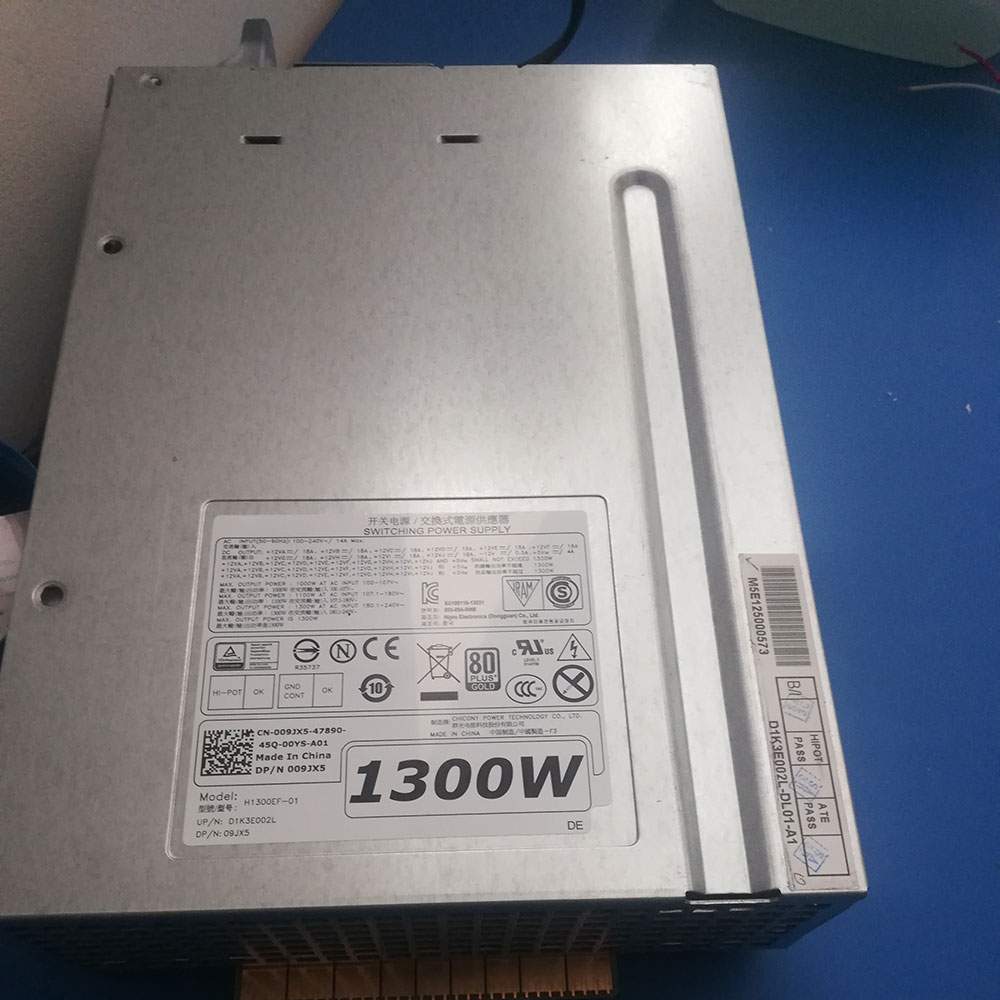
The DELL H1300EF-01 Servers charger from tech-battery.com delivers power when you need it and where you need it. It has been specially designed to meet the power needs of your DELL Servers and will help you power up your Servers in the office, business trips or vacations. Our H1300EF-01 Servers Adapter is high quality and 1 year warranty. You can get this discount DELL H1300EF-01 Servers Power Supply with Low price. We also can ship H1300EF-01 Adapter worldwide.
DC Output: 100-240V~(50~60Hz) 14A Max
AC Input: 1300W AT AC INPUT 180.1~240V~
Power: 1300W
* Please ensure the product(s) that you are going to buy fits the brand, model and part number of your device. Placing order is easy: Add To Cart—> Fill Shipping information—-> Check out—->Finished. An email include order detais will be sent out after you check out. Tracking order is easy: An email will be sent out after your order shipping. You can get the Tracking Number, the Tracking Url with order id on your email.
REPLACES THE FOLLOWING PRODUCTS:
H1300EF-01 D1K3E002L 09JX5
FITS THE FOLLOWING DEVICES:
MAX OUTPUT POWER :1000W AT AC INPUT 100-107V~ MAX OUTPUT POWER : 1100W AT AC INPUT 107.1-180V~ MAX OUTPUT POWER: 1300W AT AC INPUT 180.1~240V~ MAX . OUTPUT POWER IS 1300W
DELL T7610 Workstation
H1300EF-01 ac adapter not working?
When the H1300EF-01 AC adapter (charger) fails to work, it will neither charge the Servers battery nor provide power to operate the Servers without battery power. Power issues on a Servers are compounded because a Servers has two power sources: AC adapter (charger) & battery. When H1300EF-01 power is not available, power is provided by the Servers battery.
If you’re having issues with your H1300EF-01 adapter not charging your Servers, please try to follow these steps to solve the problem.
Inspect the H1300EF-01 AC adapter, cables and adapter (DC) port on the Servers for damages
Unplug the H1300EF-01 AC adapter from the wall outlet.
Disconnect any external peripherals connected to the Servers.
Press and hold the Power button for 30 seconds to drain a residual power from the Servers.
Plug the H1300EF-01 AC adapter into the Servers.
Turn on the Servers. If your Servers still can’t strat, you need a new H1300EF-01 ac adapter.
11 Tips On Choosing The Correct H1300EF-01 Servers Charger
It is not difficult to find the correct H1300EF-01 Servers charger if you are ready to do a little research. Many people end up purchasing wrong Servers chargers from the internet simply because they do not set aside enough time to look for the correct information. To help you in this regard, the following is a compilation of some important tips on finding the right H1300EF-01 charger for your Servers:
1. Before you make up your mind to buy a new charger, make sure you check the H1300EF-01 Servers power supply and detachable wires for any faults. Just make sure that your charger is indeed faulty before you decide to place an order either online or offline.
2. Serverss in a series may or may not have the same H1300EF-01 charger. Different models manufactured by a company have different specifications. Always keep the compatibility aspect in mind while making such purchases.
3. You must scout for the correct information. Finding Servers chargers can be an extremely convenient process if you have the right information. This information can be found on your Servers or the old Servers charger very easily. Note down the manufacturer’s information labelled on your old H1300EF-01 charger. Use this information when you perform an online search.
4. If you are going to purchase from a local computer or electronics store, look carefully at the list of all computer models compatible with a H1300EF-01 charger under consideration. Servers chargers generally come with a list of various Servers makes.
5. Turn your Servers face down and note the product information stamped by the manufacturer. These specs are provided on different parts of the Servers. Look for the product specification stamp that reads something along the lines of ‘AC Adapter.’ That is where you can easily find the correct model number of all chargers.
6. Make sure you have the right pin connectors while purchasing a H1300EF-01 charger for your Servers. These pins should be compatible with your existing wall sockets. Charging your Servers can be a bother with a new charger if its pins do not fit into your room’s wall sockets.
7. You can find a Servers charger with additional features. These days, it is possible to find chargers that trip the Servers power supply as soon as there is a voltage fluctuation. These chargers are great, especially if you live in an area where power fluctuations are frequent.
8. It is possible to find a universal charger nowadays since many manufactures are selling one-for-all chargers. These Servers chargers are fine as long as you find one that is compatible with your Servers.
9. Always check the voltage, input, and output before buying any charger. These details are labelled on the product packaging. Make sure this information is in keeping with the specs of your Servers.
10. Do not be tempted by unbelievably low prices on some websites as you may end up placing an order for a duplicate product. Always buy Servers chargers from a reputed or professional site.
11. In principle, the more authentication the more reliable the adapter is. Don’t buy a compatible H1300EF-01 adapter with few certifications, it will hurt your machine.
How to do when ac adapter buzzing noise?
Buzzing in an AC adapter can mean a number of things, but often it is related to a damaged adapter, poor grounding or phasing issues with your power. Figuring out exactly why your AC adapter is buzzing will probably require some troubleshooting, but in the end you can probably isolate the problem and get rid of the frustrating noise.
Check for any obvious damage to the adapter. If any of the outer rubber coating has been damaged so that the conductor inside is exposed, this could allow interference to enter the current and cause a buzzing sound. Untie any knots if the cord has become knotted. Make sure that the connection where the cord meets the actual box adapter is still intact; this sometimes can become damaged and make a poor connection.
Repair any damage with electrical tape. Cover all exposed areas.
Plug the AC adapter into the same outlet as the other equipment you are using. Some apartments and houses have multiple phases of power that can create audio interference if mixed together, so running everything off of the same phase might get rid of the buzz.
Run your equipment through a surge protecting power strip or, if necessary, a power conditioner. Audio and video equipment is especially susceptible to interference caused by ground looping. A power conditioner will smooth out the current and protect your equipment from any peaks or spikes in current.
Why laptop adapter light blinks?
Question description:
A few days ago studying in the UH library, I noticed my laptop all of a sudden wasn’t receiving power and the light my AC adapter was blinking. After unplugging it from the laptop, that is, from the power jack, the AC adapter’s light turned solid green again. Then, as you might guess, after plugging it back into the laptop’s power jack, the light on the adapter would again start blinking and no power would circulate.
After brief research, I learned that I could take the battery out and press the power button to relieve all currents and that after that everything would work fine. Well, I did get it to work, however not my this method. After trying it several times and failing, I figured I’d just use the laptop without the battery, since it powered the laptop without the battery in it. Then the idea of just placing the battery back in the laptop while I was receiving power came up. So as the laptop is working I placed the battery in and SUCCESS the AC adapter no longer was blinking and it was successfully transferring power to the laptop and battery.
Now, however, several days later, in a similar library, I noticed I wasn’t receiving power again. When I unplugged the adapter from the laptop, the light on the adapter continued to blink. This was not the case previously. Previously, the light on the adapter would only blink when plugged into the laptop and would turn solid green when I disconnected it from the laptop. Now however, without the laptop ever coming into the picture, the AC adapter, by itself, not plugged into anything other than the wall, constantly blinks. The laptop receives no power, and I’m stuck.
Also, used my sisters AC adapter, she has a similar laptop, and everything worked fine. Meanwhile, my AC adapter, while plugged into the same power jack in the wall, just blinks.. and blinks…
someone help.
Answer:
The AC adapter’s light turned solid green means ac adapter have a solid out put. When the light blinking, it means that the adapter is trying to output again and again, and it keeps flashing to indicate that the output was failed. You need check laptop dc jack or a MOSFET on laptop motherboard. Usually one laptop model develops this kind of fault and then many of the same model start to fail.