DDR5 is on the way! We shouldn’t have to wait too long to see next-generation DDR5 system memory land in systems, according to Samsung. Whether those will be gaming systems we’ll have to wait and see what Intel and AMD have in store. But there’s still plenty to be excited about right now as the memory manufacturing giant sets up its fabs for volume production of DDR5 in 2021.
The news comes straight from Samsung, who’s just announced its first EUV-based DRAM, D1x. These new DDR4 chips will act as precursor to further EUV-based DDR5 products next year, including those intended for use within mobiles, servers, datacentres, and, you guessed it, PCs.
DDR5 will double the available data rates of DDR4, which is currently in service across most gaming PCs built in the latter half of the 2010s. The standard set out by its governing body, JEDEC, also outlines a rather spectacular density increase per chip, meaning chipmakers will be able to squeeze a lot more memory into a much smaller footprint when DDR5 arrives.
As for EUV, or Extreme Ultraviolet lithography, this is a lithographic technology that allows for a reduction in silicon manufacturing complexity. In theory, it allows chip manufacturers of all shapes and sizes—including those that produce CPUs and GPUs—to simplify the entire lithographic process by using shorter wavelengths of light. Sounds great, but it also costs a heap and no one has quite managed to figure out that whole ‘profitability’ thing.
But it’s starting to look like some major silicon players are getting to grips with the new technology. TSMC, who produce Nvidia’s Turing GPUs and AMD’s entire 7nm lineup, already make some chips on the EUV-based 7nm+ node—but none that matter to us PC gamers. AMD appears to be looking towards the enhanced 7nm node for Zen 3 and RDNA 2.0, which relies on the traditional DUV, or deep ultraviolet, method instead.
The latest leaks regarding Intel’s plans for 2021 currently show it committing to the DDR4 status quo with its next-(next-)gen Intel Rocket Lake CPUs. However, AMD’s future Zen processors could pick up the next-gen memory standard first. Either way, we don’t expect gaming PCs to be at the forefront of DDR5 adoption. Boo.
Micron, a US-based memory manufacturer, is already sampling its next-gen DDR5 registered DIMMs (RDIMMs). These are not for the likes of you and me either—rather these are intended for whopping server racks—but it’s touting a 1.85x performance increase with DDR5 over DDR4, and that’s a convincing glimpse of what’s to come in PC gaming’s future.
Samsung’s “4th-gen 10nm-class (1a) EUV-based 16Gb DDR5/LPDDR5” (phew) memory will hit mass production sometime in 2021. If Samsung expects growing demand for DDR5, we’re sure to see the entire computing industry shifting in line with its expectations. Hopefully PC gaming won’t trail too far behind, either.
The workstation and server markets are big business for not only chip manufacturers such as Intel and AMD, but for motherboard vendors too. Since AMD’s introduction of its Zen-based EPYC processors, its prosumer market share has been slowly, but surely, creeping back. One example of a single socket solution available on the market is the GIGABYTE MZ31-AR0. With support for AMD’s EPYC family of processors, the MZ31-AR0 has some interesting components including its 2 x SFP+ 10 G Ethernet ports powered by a Broadcom BCM57810S controller, and four SlimSAS slots offering up to sixteen SATA ports.
GIGABYTE MZ31-AR0 Overview
As it stands, AMD has two versions of its EPYC range on the market: the first generation Zen series (called Naples), released in June 2017, and the Zen 2 based EPYC chips (called Rome). Each processor from AMD’s EPYC families has support for 128 PCIe lanes and up to 2 TB of system memory operating in eight-channel mode.
Despite the GIGABYTE MZ31-AR0 being a server motherboard, it uses the regular E-ATX form factor, with with a single SP3 socket that, depending on the revision of the board, supports Naples (rev 1.x) or both Naples and EPYC (rev 2.x). This ranges from base 8 cores 16 thread model (EPYC 7251), all the way to a 64 core and 128 thread variant (EPYC 7742).
EPYC is focusing on both performance and IO, and so along with a lot of PCIe lanes on offer, the MZ31-AR0’s primary features includes a Broadcom BCM 57810S dual SPF+ 10 G Ethernet controller which adds two 10 G ports onto the rear panel. For maintenance, an Aspeed AST2500 powered remote management controller provides BMC functionality, with a D-sub 2D video output with a dedicated Ethernet port for direct access.
Both revisions of the board are limited to PCIe 3.0, even with Rome, but the board makes the most of the available PCIe 3.0 lanes. The GIGABYTE MZ31-AR0 has four full-length PCIe 3.0 x16 slots, one full-length PCIe 3.0 x8 slot, with a further two full-length PCIe 3.0 x8 slots given this board a total of seven full-length slots. This is an impressive array of PCIe support and is equipped to make the most of the 128 lanes available from the processor. Equally impressive is sixteen memory slots set up in two banks of eight slots either side of the SP3 socket which offers eight-channel support. These slots support both RDIMM and LRDIMM DDR4 modules up to a maximum capacity of 2 TB, with DDR4-2666, DDR4-2400, and DDR4-2133 all supported.
For storage, the GIGABYTE MZ31-AR0 is well-equipped with four SlimSAS ports with each slot supporting four SATA drives, with a combined total of sixteen available for use. Interestingly, the MZ31-AR0 is equipped with a single PCIe 3.0 M.2 slot. Some users may have expected a second M.2 slot due to the board’s large E-ATX form factor, but alas that is not the case. Focusing on the design, the board layout implies it would be more than suitable for rackmount deployment in a 1U chassis, which it is, although it can also be used in a permitting chassis that features E-ATX support. The positioning of the single 24-pin motherboard and two 8-pin CPU 12 V ATX connectors fit in line with support for 1U chassis, with GIGABYTE offering its own 1U solutions for users to capitalize on. The SP3 socket is rotated with this in mind for better airflow in a server situation.
From a performance perspective, we compared the MZ31-AR0 against an ASRock server model as well as other 16-core Zen compatible boards. Everything is in line with the competition – POST times are higher than anticipated, but this can be put down to the BMC initialization process. The performance in relation to power consumption is also a little higher than the ASRock model we tested, but it is EATX (versus ATX) and is pretty stacked, to say the least.
The GIGABYTE MZ31-AR0 currently retails for $565 at Amazon, and as a result of its current price point has a couple of competitive rivals on the market. One such example is the Supermicro MBD-H11SSL-NC which retails for $470 at Newegg, although with a much lesser networking configuration, and with fewer memory slots. Another example is the ASRock Rack EPYCD8 model with a current selling price of $460, which is in a similar with Intel dual 10 G Ethernet but has fewer memory slots.
Both of the Supermicro and ASRock examples are also ATX, whereas the GIGABYTE MZ31-AR0 is E-ATX, and as a result has more space to include the better memory support and premium dual 10 G SPF+ networking which it includes. For the extra $100 over the ASRock and Supermicro models, the MZ31-AR0 looks like a solid choice based on value and specifications, which in this area given the pricing of AMD’s EPYC Zen-based processors, is a very worthy trade-off against the competition.
Samsung has just announced a brand-new Android tablet for the masses. The new 2020 Samsung Galaxy Tab A 8.4 offers up LTE connectivity, solid battery life, and more all for an affordable price.
The 2020 Galaxy Tab A 8.4 is a tablet designed for an affordable price point. Obviously, it offers up an 8.4-inch display which has a resolution of 1920×1200, leaving a 16:10 aspect ratio which should be handy for content consumption.
The tablet also features Android Pie. That’s pretty disappointing considering how long Android 10 has been out, but at least it’ll include One UI. There won’t be DeX support like the more expensive Galaxy Tab S6. There’s a 5MP front-facing camera for video calls and an 8MP rear camera too. There’s also a 5,000 mAh battery, USB-C charging, and Samsung claims up to 10 hours of battery life on typical use.
How about specs? You’ll find 3GB of RAM, 32GB of storage with a microSD card slot, and the whole system is running on an Exynos 7904 processor. There’s also a headphone jack and dual-speakers with Dolby Atmos.
For now, the 2020 Galaxy Tab A 8.4 is only available for Verizon Wireless. Of course, you’ll still be able to use it as a WiFi-only tablet if you’d prefer to. The Tab A is available in a “Mocha” color and has a full metal design.
Pricing lands at $279 with AT&T, Sprint, US Cellular, and T-Mobile models coming soon.
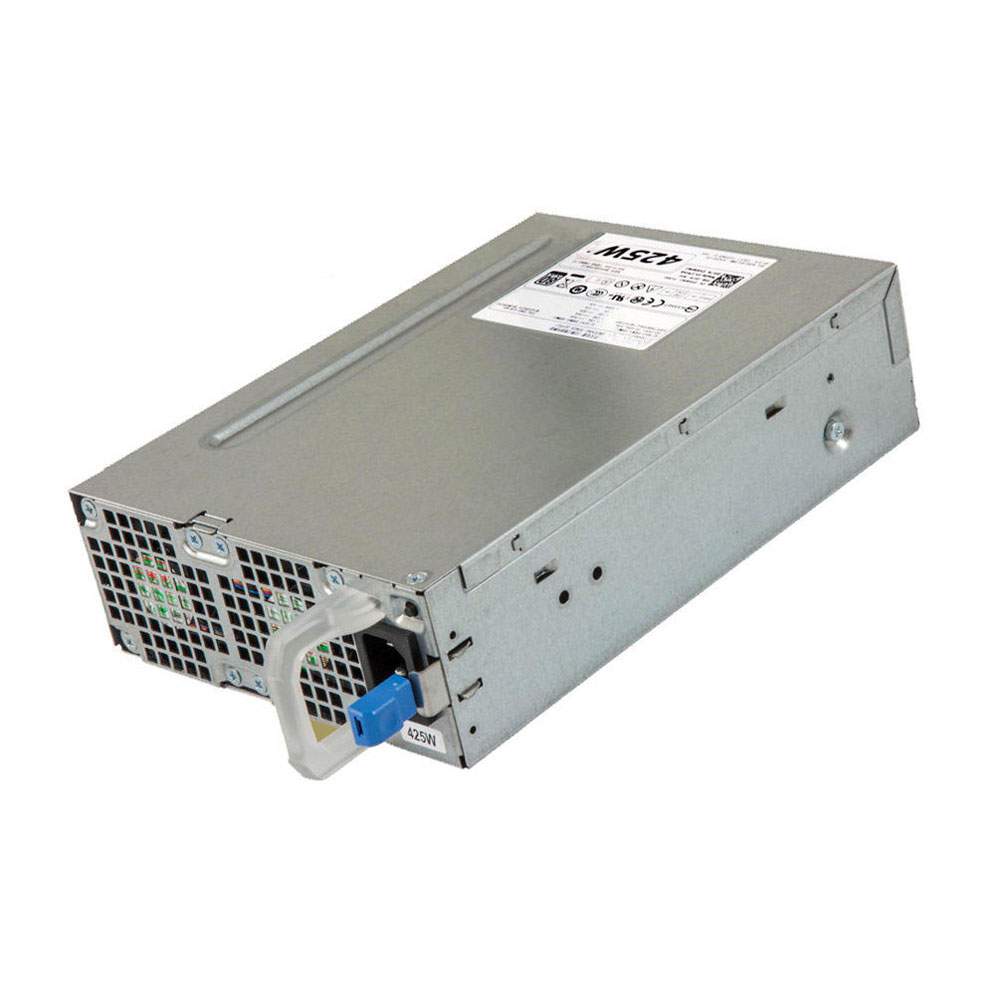
The DELL AC425EF-00 Servers charger from tech-battery.com delivers power when you need it and where you need it. It has been specially designed to meet the power needs of your DELL Servers and will help you power up your Servers in the office, business trips or vacations. Our AC425EF-00 Servers Adapter is high quality and 1 year warranty. You can get this discount DELL AC425EF-00 Servers Power Supply with Low price. We also can ship AC425EF-00 Adapter worldwide.
DC Output: 100-240V~,50-60Hz,6.0A
AC Input: +12VA === 18.0A
Power: 425W
* Please ensure the product(s) that you are going to buy fits the brand, model and part number of your device. Placing order is easy: Add To Cart—> Fill Shipping information—-> Check out—->Finished. An email include order detais will be sent out after you check out. Tracking order is easy: An email will be sent out after your order shipping. You can get the Tracking Number, the Tracking Url with order id on your email.
REPLACES THE FOLLOWING PRODUCTS:
AC425EF-00 Y6WWJ G50YW
FITS THE FOLLOWING DEVICES:
MAX. OUTPUT POWER IS 425W DC OUTPUT : +12VA === 18.0A +12VB ===18.0A +12VC === 18.0A -12V === 0.5A +5.0VSB ===4.0A
Dell Precision T3600
AC425EF-00 ac adapter not working?
When the AC425EF-00 AC adapter (charger) fails to work, it will neither charge the Servers battery nor provide power to operate the Servers without battery power. Power issues on a Servers are compounded because a Servers has two power sources: AC adapter (charger) & battery. When AC425EF-00 power is not available, power is provided by the Servers battery.
If you’re having issues with your AC425EF-00 adapter not charging your Servers, please try to follow these steps to solve the problem.
Inspect the AC425EF-00 AC adapter, cables and adapter (DC) port on the Servers for damages
Unplug the AC425EF-00 AC adapter from the wall outlet.
Disconnect any external peripherals connected to the Servers.
Press and hold the Power button for 30 seconds to drain a residual power from the Servers.
Plug the AC425EF-00 AC adapter into the Servers.
Turn on the Servers. If your Servers still can’t strat, you need a new AC425EF-00 ac adapter.
11 Tips On Choosing The Correct AC425EF-00 Servers Charger
It is not difficult to find the correct AC425EF-00 Servers charger if you are ready to do a little research. Many people end up purchasing wrong Servers chargers from the internet simply because they do not set aside enough time to look for the correct information. To help you in this regard, the following is a compilation of some important tips on finding the right AC425EF-00 charger for your Servers:
1. Before you make up your mind to buy a new charger, make sure you check the AC425EF-00 Servers power supply and detachable wires for any faults. Just make sure that your charger is indeed faulty before you decide to place an order either online or offline.
2. Serverss in a series may or may not have the same AC425EF-00 charger. Different models manufactured by a company have different specifications. Always keep the compatibility aspect in mind while making such purchases.
3. You must scout for the correct information. Finding Servers chargers can be an extremely convenient process if you have the right information. This information can be found on your Servers or the old Servers charger very easily. Note down the manufacturer’s information labelled on your old AC425EF-00 charger. Use this information when you perform an online search.
4. If you are going to purchase from a local computer or electronics store, look carefully at the list of all computer models compatible with a AC425EF-00 charger under consideration. Servers chargers generally come with a list of various Servers makes.
5. Turn your Servers face down and note the product information stamped by the manufacturer. These specs are provided on different parts of the Servers. Look for the product specification stamp that reads something along the lines of ‘AC Adapter.’ That is where you can easily find the correct model number of all chargers.
6. Make sure you have the right pin connectors while purchasing a AC425EF-00 charger for your Servers. These pins should be compatible with your existing wall sockets. Charging your Servers can be a bother with a new charger if its pins do not fit into your room’s wall sockets.
7. You can find a Servers charger with additional features. These days, it is possible to find chargers that trip the Servers power supply as soon as there is a voltage fluctuation. These chargers are great, especially if you live in an area where power fluctuations are frequent.
8. It is possible to find a universal charger nowadays since many manufactures are selling one-for-all chargers. These Servers chargers are fine as long as you find one that is compatible with your Servers.
9. Always check the voltage, input, and output before buying any charger. These details are labelled on the product packaging. Make sure this information is in keeping with the specs of your Servers.
10. Do not be tempted by unbelievably low prices on some websites as you may end up placing an order for a duplicate product. Always buy Servers chargers from a reputed or professional site.
11. In principle, the more authentication the more reliable the adapter is. Don’t buy a compatible AC425EF-00 adapter with few certifications, it will hurt your machine.
How to do when ac adapter buzzing noise?
Buzzing in an AC adapter can mean a number of things, but often it is related to a damaged adapter, poor grounding or phasing issues with your power. Figuring out exactly why your AC adapter is buzzing will probably require some troubleshooting, but in the end you can probably isolate the problem and get rid of the frustrating noise.
Check for any obvious damage to the adapter. If any of the outer rubber coating has been damaged so that the conductor inside is exposed, this could allow interference to enter the current and cause a buzzing sound. Untie any knots if the cord has become knotted. Make sure that the connection where the cord meets the actual box adapter is still intact; this sometimes can become damaged and make a poor connection.
Repair any damage with electrical tape. Cover all exposed areas.
Plug the AC adapter into the same outlet as the other equipment you are using. Some apartments and houses have multiple phases of power that can create audio interference if mixed together, so running everything off of the same phase might get rid of the buzz.
Run your equipment through a surge protecting power strip or, if necessary, a power conditioner. Audio and video equipment is especially susceptible to interference caused by ground looping. A power conditioner will smooth out the current and protect your equipment from any peaks or spikes in current.
Why laptop adapter light blinks?
Question description:
A few days ago studying in the UH library, I noticed my laptop all of a sudden wasn’t receiving power and the light my AC adapter was blinking. After unplugging it from the laptop, that is, from the power jack, the AC adapter’s light turned solid green again. Then, as you might guess, after plugging it back into the laptop’s power jack, the light on the adapter would again start blinking and no power would circulate.
After brief research, I learned that I could take the battery out and press the power button to relieve all currents and that after that everything would work fine. Well, I did get it to work, however not my this method. After trying it several times and failing, I figured I’d just use the laptop without the battery, since it powered the laptop without the battery in it. Then the idea of just placing the battery back in the laptop while I was receiving power came up. So as the laptop is working I placed the battery in and SUCCESS the AC adapter no longer was blinking and it was successfully transferring power to the laptop and battery.
Now, however, several days later, in a similar library, I noticed I wasn’t receiving power again. When I unplugged the adapter from the laptop, the light on the adapter continued to blink. This was not the case previously. Previously, the light on the adapter would only blink when plugged into the laptop and would turn solid green when I disconnected it from the laptop. Now however, without the laptop ever coming into the picture, the AC adapter, by itself, not plugged into anything other than the wall, constantly blinks. The laptop receives no power, and I’m stuck.
Also, used my sisters AC adapter, she has a similar laptop, and everything worked fine. Meanwhile, my AC adapter, while plugged into the same power jack in the wall, just blinks.. and blinks…
someone help.
Answer:
The AC adapter’s light turned solid green means ac adapter have a solid out put. When the light blinking, it means that the adapter is trying to output again and again, and it keeps flashing to indicate that the output was failed. You need check laptop dc jack or a MOSFET on laptop motherboard. Usually one laptop model develops this kind of fault and then many of the same model start to fail.
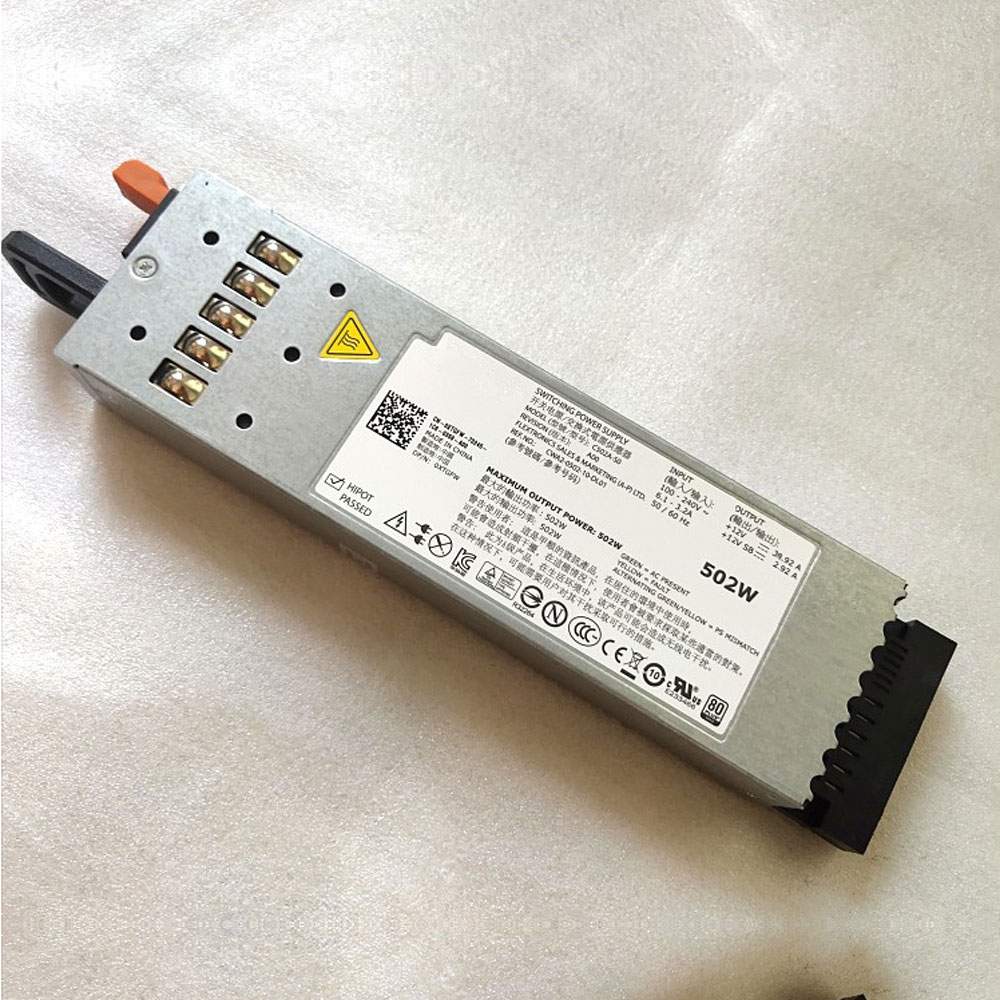
The DELL 0J38MN Servers charger from tech-battery.com delivers power when you need it and where you need it. It has been specially designed to meet the power needs of your DELL Servers and will help you power up your Servers in the office, business trips or vacations. Our 0J38MN Servers Adapter is high quality and 1 year warranty. You can get this discount DELL 0J38MN Servers Power Supply with Low price. We also can ship 0J38MN Adapter worldwide.
DC Output: 100-240V ~6.1-3.2A 50/60Hz
AC Input: +12V == 38.92A
Power: 502W
* Please ensure the product(s) that you are going to buy fits the brand, model and part number of your device. Placing order is easy: Add To Cart—> Fill Shipping information—-> Check out—->Finished. An email include order detais will be sent out after you check out. Tracking order is easy: An email will be sent out after your order shipping. You can get the Tracking Number, the Tracking Url with order id on your email.
REPLACES THE FOLLOWING PRODUCTS:
C502A-S0 A502P-00 J38MN XTGFW 8V22F 0J38MN
FITS THE FOLLOWING DEVICES:
MAXIMUM OUTPUT POWER :502W OUTPUT :+12V == 38.92A +12V SB == 2.92A
Dell Poweredge R610
0J38MN ac adapter not working?
When the 0J38MN AC adapter (charger) fails to work, it will neither charge the Servers battery nor provide power to operate the Servers without battery power. Power issues on a Servers are compounded because a Servers has two power sources: AC adapter (charger) & battery. When 0J38MN power is not available, power is provided by the Servers battery.
If you’re having issues with your 0J38MN adapter not charging your Servers, please try to follow these steps to solve the problem.
Inspect the 0J38MN AC adapter, cables and adapter (DC) port on the Servers for damages
Unplug the 0J38MN AC adapter from the wall outlet.
Disconnect any external peripherals connected to the Servers.
Press and hold the Power button for 30 seconds to drain a residual power from the Servers.
Plug the 0J38MN AC adapter into the Servers.
Turn on the Servers. If your Servers still can’t strat, you need a new 0J38MN ac adapter.
11 Tips On Choosing The Correct 0J38MN Servers Charger
It is not difficult to find the correct 0J38MN Servers charger if you are ready to do a little research. Many people end up purchasing wrong Servers chargers from the internet simply because they do not set aside enough time to look for the correct information. To help you in this regard, the following is a compilation of some important tips on finding the right 0J38MN charger for your Servers:
1. Before you make up your mind to buy a new charger, make sure you check the 0J38MN Servers power supply and detachable wires for any faults. Just make sure that your charger is indeed faulty before you decide to place an order either online or offline.
2. Serverss in a series may or may not have the same 0J38MN charger. Different models manufactured by a company have different specifications. Always keep the compatibility aspect in mind while making such purchases.
3. You must scout for the correct information. Finding Servers chargers can be an extremely convenient process if you have the right information. This information can be found on your Servers or the old Servers charger very easily. Note down the manufacturer’s information labelled on your old 0J38MN charger. Use this information when you perform an online search.
4. If you are going to purchase from a local computer or electronics store, look carefully at the list of all computer models compatible with a 0J38MN charger under consideration. Servers chargers generally come with a list of various Servers makes.
5. Turn your Servers face down and note the product information stamped by the manufacturer. These specs are provided on different parts of the Servers. Look for the product specification stamp that reads something along the lines of ‘AC Adapter.’ That is where you can easily find the correct model number of all chargers.
6. Make sure you have the right pin connectors while purchasing a 0J38MN charger for your Servers. These pins should be compatible with your existing wall sockets. Charging your Servers can be a bother with a new charger if its pins do not fit into your room’s wall sockets.
7. You can find a Servers charger with additional features. These days, it is possible to find chargers that trip the Servers power supply as soon as there is a voltage fluctuation. These chargers are great, especially if you live in an area where power fluctuations are frequent.
8. It is possible to find a universal charger nowadays since many manufactures are selling one-for-all chargers. These Servers chargers are fine as long as you find one that is compatible with your Servers.
9. Always check the voltage, input, and output before buying any charger. These details are labelled on the product packaging. Make sure this information is in keeping with the specs of your Servers.
10. Do not be tempted by unbelievably low prices on some websites as you may end up placing an order for a duplicate product. Always buy Servers chargers from a reputed or professional site.
11. In principle, the more authentication the more reliable the adapter is. Don’t buy a compatible 0J38MN adapter with few certifications, it will hurt your machine.
How to do when ac adapter buzzing noise?
Buzzing in an AC adapter can mean a number of things, but often it is related to a damaged adapter, poor grounding or phasing issues with your power. Figuring out exactly why your AC adapter is buzzing will probably require some troubleshooting, but in the end you can probably isolate the problem and get rid of the frustrating noise.
Check for any obvious damage to the adapter. If any of the outer rubber coating has been damaged so that the conductor inside is exposed, this could allow interference to enter the current and cause a buzzing sound. Untie any knots if the cord has become knotted. Make sure that the connection where the cord meets the actual box adapter is still intact; this sometimes can become damaged and make a poor connection.
Repair any damage with electrical tape. Cover all exposed areas.
Plug the AC adapter into the same outlet as the other equipment you are using. Some apartments and houses have multiple phases of power that can create audio interference if mixed together, so running everything off of the same phase might get rid of the buzz.
Run your equipment through a surge protecting power strip or, if necessary, a power conditioner. Audio and video equipment is especially susceptible to interference caused by ground looping. A power conditioner will smooth out the current and protect your equipment from any peaks or spikes in current.
Why laptop adapter light blinks?
Question description:
A few days ago studying in the UH library, I noticed my laptop all of a sudden wasn’t receiving power and the light my AC adapter was blinking. After unplugging it from the laptop, that is, from the power jack, the AC adapter’s light turned solid green again. Then, as you might guess, after plugging it back into the laptop’s power jack, the light on the adapter would again start blinking and no power would circulate.
After brief research, I learned that I could take the battery out and press the power button to relieve all currents and that after that everything would work fine. Well, I did get it to work, however not my this method. After trying it several times and failing, I figured I’d just use the laptop without the battery, since it powered the laptop without the battery in it. Then the idea of just placing the battery back in the laptop while I was receiving power came up. So as the laptop is working I placed the battery in and SUCCESS the AC adapter no longer was blinking and it was successfully transferring power to the laptop and battery.
Now, however, several days later, in a similar library, I noticed I wasn’t receiving power again. When I unplugged the adapter from the laptop, the light on the adapter continued to blink. This was not the case previously. Previously, the light on the adapter would only blink when plugged into the laptop and would turn solid green when I disconnected it from the laptop. Now however, without the laptop ever coming into the picture, the AC adapter, by itself, not plugged into anything other than the wall, constantly blinks. The laptop receives no power, and I’m stuck.
Also, used my sisters AC adapter, she has a similar laptop, and everything worked fine. Meanwhile, my AC adapter, while plugged into the same power jack in the wall, just blinks.. and blinks…
someone help.
Answer:
The AC adapter’s light turned solid green means ac adapter have a solid out put. When the light blinking, it means that the adapter is trying to output again and again, and it keeps flashing to indicate that the output was failed. You need check laptop dc jack or a MOSFET on laptop motherboard. Usually one laptop model develops this kind of fault and then many of the same model start to fail.
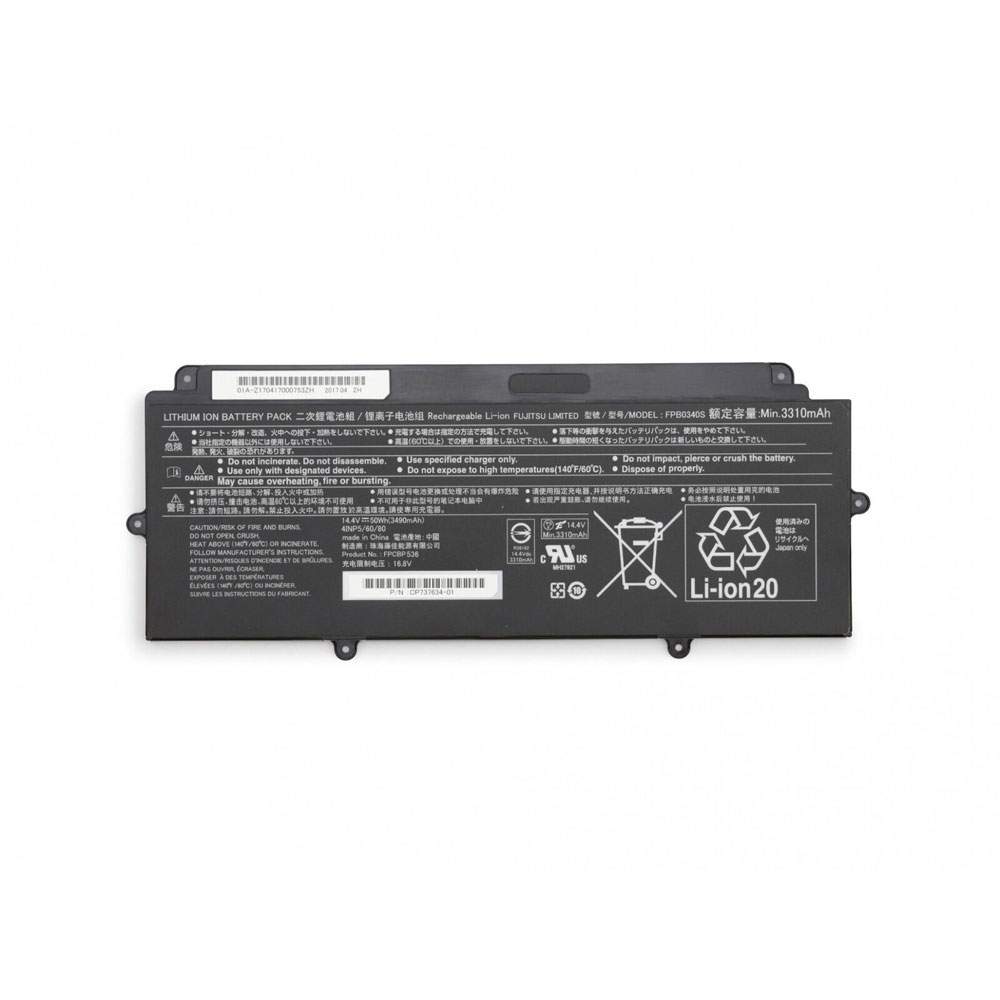
Find the right battery for Fujitsu Lifebook E548 U937 to solve your power issues. Our FUJITSU FPCBP536 batteries are manufactured to precisely fit just as your original battery.
We use the highest quality Li-ion cells and components that are lighter weight, charge faster and last longer.
US FUJITSU battery shop – Tech-Battery.com ! Shopping with us is safe and secure! 100% Guarantee Quality and Fully Test!
FUJITSU FPCBP536 Battery For FUJITSU – Battery For FUJITSU laptop Li-ion 3490mAh/50WH 14.4V/16.8V. Browse our various categories and find out why we have been the go-to source for our customers.
Chemistry: Li-ion
Voltage: 3490mAh/50WH
Capacity: 14.4V/16.8V
Free shipping in most countries. click here to view detailed shipping costs.
We ship to the worldwide,please enquiry shipping & handling if you are out of united states.
What’s the total delivery time? (please use this formula to determine when your order will arrive) total delivery time = packaging time + shipping time.
FUJITSU FPCBP536 FUJITSU battery is replacement for Fujitsu Lifebook E548 U937. The FPCBP536 batteries equivalent is guaranteed to meet or exceed FUJITSU original specifications. All FUJITSU FPCBP536 Battery are brand new, 1 year Warranty, 100% Guarantee Quality and Fully Test!
We deliver quality FUJITSU laptop extended batteries online. Purchase your FUJITSU laptop battery here.
FUJITSU FPCBP536 FUJITSU Batteries
100% OEM Compatible with your FUJITSU laptop.
Lithium Ion battery technology
Convenient and secure online purchasing
Dependable high quality FUJITSU batteries
Satisfaction guaranteed or your money back
1 Year Warranty on all FUJITSU laptop Replacement Batteries
6 tips to increase FPCBP536 FUJITSU Battery lifetime
The performance of your FUJITSU depends largely on the performance of your battery. And his time of life depends on its users, and that you are. These are the principles that have guided the FUJITSU , at the head, so you can optimize the performance of FUJITSU laptop battery. New battery still fully charged FPCBP536 sold. You must be on the first wheel to be conditioned for optimum performance. Loading and unloading of the battery 4 or 5 times is enough to determine. The memory effect completely to avoid a full charge and discharge the battery, FUJITSU FPCBP536 twice a month. The dirt on the FUJITSU FPCBP536 contacts of the battery can power the FUJITSU laptop batteries. Clean with alcohol and cotton can look like and function like new. This method is recommended for those using the AC adapter for long periods. We recommend that you use the FUJITSU FPCBP536 battery at least once in two weeks. Batteries lose its charge when stored for a long time and you need the battery if it does break. If he does not use a length of time, the FUJITSU FPCBP536 battery will be stored protected from a clean, dry and cool, heat and other metals. A loss of business to charge the battery in time and need a break before reuse. Power Management Features Battery FPCBP536 enable the conservation of energy in the battery of FUJITSU laptop. You can control the speed of the processor off, or you can adjust the brightness of the LCD screen to a minimum to ensure low power consumption.
Why we have been the go-to source for our customers ?
We stock a wide range of rechargeable batteries for FUJITSU laptop. Your FUJITSU Tablet PC is part of your everyday life. Successful communications on a FUJITSU begin with your battery. When purchasing a replacement battery for your FUJITSU FUJITSU, dependability and price are what we have to offer. We’ve been supplying reliable, high quality FUJITSU batteries for over 10 years. Our goal is to provide high quality aftermarket replacement batteries at a very reasonable price. All of our rechargeable Li-Ion FUJITSU batteries are backed by a one year warranty.
What is the run time of FUJITSU battery?
FUJITSU batteries have two main ratings on them: Volts and Amperes. Because size and weight of batteries is limited when compared to larger batteries such as car batteries, most companies show their ratings with Volts and Milliamperes. One thousand Milliamperes equals 1 Ampere. When buying a battery, select batteries with the most Milliamperes (or mAh). Batteries are also rated by Watt-Hours, perhaps the simplest rating of all. This is found by multiplying the Volts and the Amperes together. For example:
14.4 Volts, 4000mAh (Note: 4000mAh is equal to 4.0 Amperes).
14.4 x 4.0 = 57.60 Watt-Hours
Watt-Hours signifies the energy needed to power one watt for one hour.
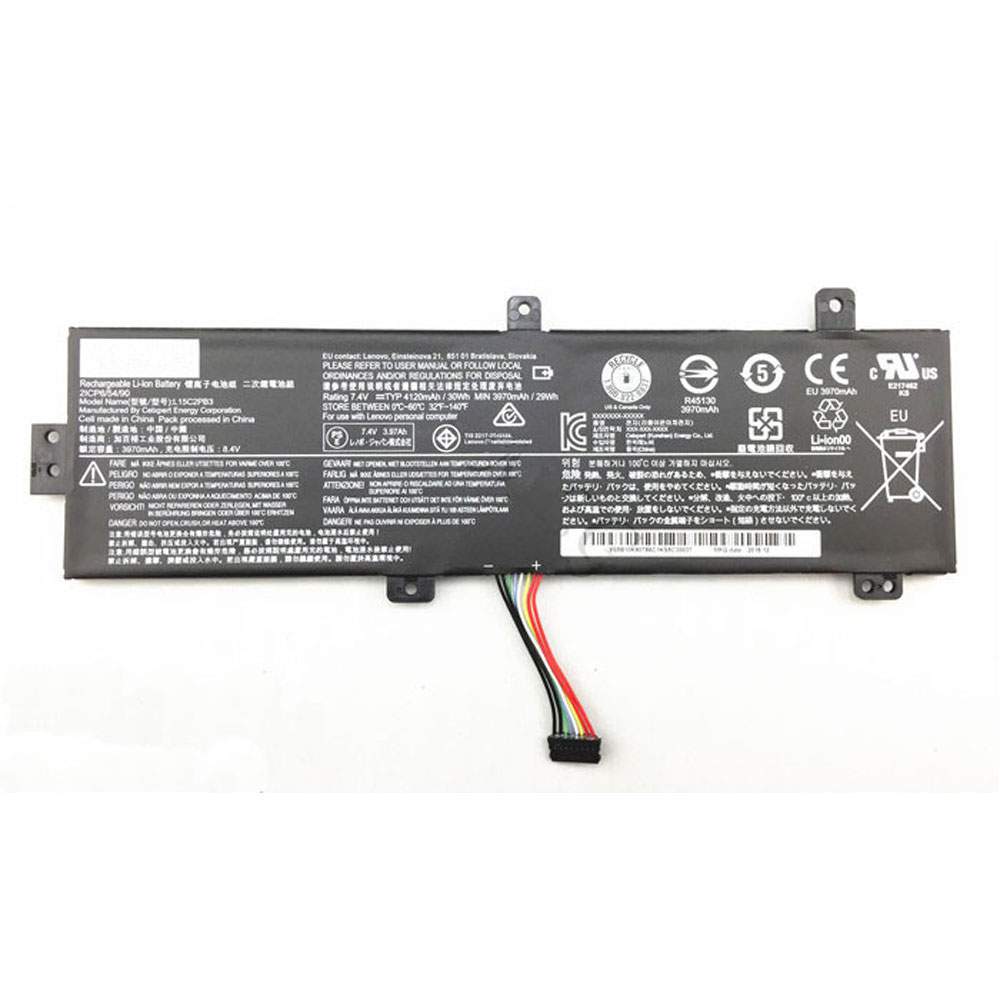
Find the right battery for Lenovo IdeaPad 310-15ISK L15M2PB3 Series to solve your power issues. Our lenovo L15C2PB3 batteries are manufactured to precisely fit just as your original battery.
We use the highest quality Li-ion cells and components that are lighter weight, charge faster and last longer.
US lenovo battery shop – Tech-Battery.com ! Shopping with us is safe and secure! 100% Guarantee Quality and Fully Test!
lenovo L15C2PB3 Battery For lenovo – Battery For lenovo laptop Li-ion 3816mAh/29WH 7.6V/8.7V. Browse our various categories and find out why we have been the go-to source for our customers.
Chemistry: Li-ion
Voltage: 3816mAh/29WH
Capacity: 7.6V/8.7V
Free shipping in most countries. click here to view detailed shipping costs.
We ship to the worldwide,please enquiry shipping & handling if you are out of united states.
What’s the total delivery time? (please use this formula to determine when your order will arrive) total delivery time = packaging time + shipping time.
lenovo L15C2PB3 lenovo battery is replacement for Lenovo IdeaPad 310-15ISK L15M2PB3 Series. The L15C2PB3 batteries equivalent is guaranteed to meet or exceed lenovo original specifications. All lenovo L15C2PB3 Battery are brand new, 1 year Warranty, 100% Guarantee Quality and Fully Test!
We deliver quality lenovo laptop extended batteries online. Purchase your lenovo laptop battery here.
lenovo L15C2PB3 lenovo Batteries
100% OEM Compatible with your lenovo laptop.
Lithium Ion battery technology
Convenient and secure online purchasing
Dependable high quality lenovo batteries
Satisfaction guaranteed or your money back
1 Year Warranty on all lenovo laptop Replacement Batteries
6 tips to increase L15C2PB3 lenovo Battery lifetime
The performance of your lenovo depends largely on the performance of your battery. And his time of life depends on its users, and that you are. These are the principles that have guided the lenovo , at the head, so you can optimize the performance of lenovo laptop battery. New battery still fully charged L15C2PB3 sold. You must be on the first wheel to be conditioned for optimum performance. Loading and unloading of the battery 4 or 5 times is enough to determine. The memory effect completely to avoid a full charge and discharge the battery, lenovo L15C2PB3 twice a month. The dirt on the lenovo L15C2PB3 contacts of the battery can power the lenovo laptop batteries. Clean with alcohol and cotton can look like and function like new. This method is recommended for those using the AC adapter for long periods. We recommend that you use the lenovo L15C2PB3 battery at least once in two weeks. Batteries lose its charge when stored for a long time and you need the battery if it does break. If he does not use a length of time, the lenovo L15C2PB3 battery will be stored protected from a clean, dry and cool, heat and other metals. A loss of business to charge the battery in time and need a break before reuse. Power Management Features Battery L15C2PB3 enable the conservation of energy in the battery of lenovo laptop. You can control the speed of the processor off, or you can adjust the brightness of the LCD screen to a minimum to ensure low power consumption.
Why we have been the go-to source for our customers ?
We stock a wide range of rechargeable batteries for lenovo laptop. Your lenovo Tablet PC is part of your everyday life. Successful communications on a lenovo begin with your battery. When purchasing a replacement battery for your lenovo lenovo, dependability and price are what we have to offer. We’ve been supplying reliable, high quality lenovo batteries for over 10 years. Our goal is to provide high quality aftermarket replacement batteries at a very reasonable price. All of our rechargeable Li-Ion lenovo batteries are backed by a one year warranty.
What is the run time of lenovo battery?
lenovo batteries have two main ratings on them: Volts and Amperes. Because size and weight of batteries is limited when compared to larger batteries such as car batteries, most companies show their ratings with Volts and Milliamperes. One thousand Milliamperes equals 1 Ampere. When buying a battery, select batteries with the most Milliamperes (or mAh). Batteries are also rated by Watt-Hours, perhaps the simplest rating of all. This is found by multiplying the Volts and the Amperes together. For example:
14.4 Volts, 4000mAh (Note: 4000mAh is equal to 4.0 Amperes).
14.4 x 4.0 = 57.60 Watt-Hours
Watt-Hours signifies the energy needed to power one watt for one hour.
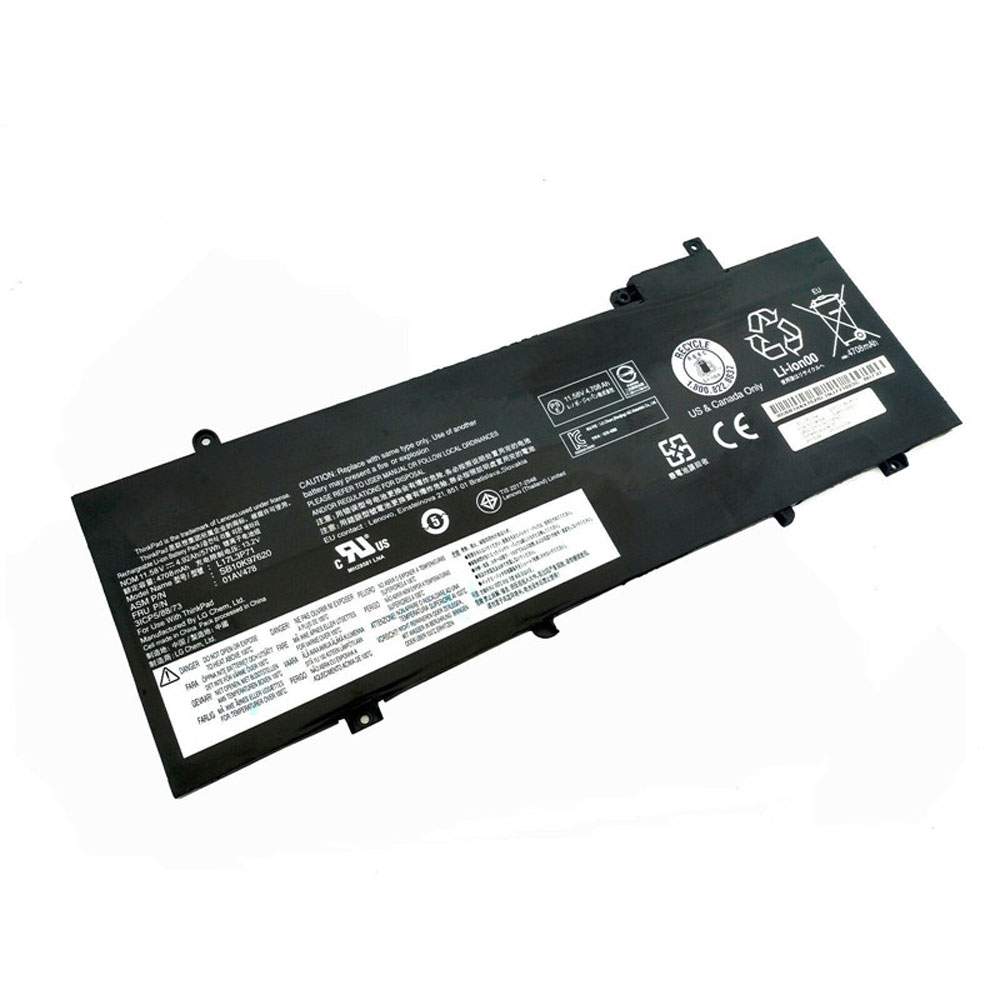
Find the right battery for Lenovo ThinkPad T480s to solve your power issues. Our lenovo L17L3P71 batteries are manufactured to precisely fit just as your original battery.
We use the highest quality Li-ion cells and components that are lighter weight, charge faster and last longer.
US lenovo battery shop – Tech-Battery.com ! Shopping with us is safe and secure! 100% Guarantee Quality and Fully Test!
lenovo L17L3P71 Battery For lenovo – Battery For lenovo laptop Li-ion 4920mAh/57WH 11.58V. Browse our various categories and find out why we have been the go-to source for our customers.
Chemistry: Li-ion
Voltage: 4920mAh/57WH
Capacity: 11.58V
Free shipping in most countries. click here to view detailed shipping costs.
We ship to the worldwide,please enquiry shipping & handling if you are out of united states.
What’s the total delivery time? (please use this formula to determine when your order will arrive) total delivery time = packaging time + shipping time.
lenovo L17L3P71 lenovo battery is replacement for Lenovo ThinkPad T480s. The L17L3P71 batteries equivalent is guaranteed to meet or exceed lenovo original specifications. All lenovo L17L3P71 Battery are brand new, 1 year Warranty, 100% Guarantee Quality and Fully Test!
We deliver quality lenovo laptop extended batteries online. Purchase your lenovo laptop battery here.
lenovo L17L3P71 lenovo Batteries
100% OEM Compatible with your lenovo laptop.
Lithium Ion battery technology
Convenient and secure online purchasing
Dependable high quality lenovo batteries
Satisfaction guaranteed or your money back
1 Year Warranty on all lenovo laptop Replacement Batteries
6 tips to increase L17L3P71 lenovo Battery lifetime
The performance of your lenovo depends largely on the performance of your battery. And his time of life depends on its users, and that you are. These are the principles that have guided the lenovo , at the head, so you can optimize the performance of lenovo laptop battery. New battery still fully charged L17L3P71 sold. You must be on the first wheel to be conditioned for optimum performance. Loading and unloading of the battery 4 or 5 times is enough to determine. The memory effect completely to avoid a full charge and discharge the battery, lenovo L17L3P71 twice a month. The dirt on the lenovo L17L3P71 contacts of the battery can power the lenovo laptop batteries. Clean with alcohol and cotton can look like and function like new. This method is recommended for those using the AC adapter for long periods. We recommend that you use the lenovo L17L3P71 battery at least once in two weeks. Batteries lose its charge when stored for a long time and you need the battery if it does break. If he does not use a length of time, the lenovo L17L3P71 battery will be stored protected from a clean, dry and cool, heat and other metals. A loss of business to charge the battery in time and need a break before reuse. Power Management Features Battery L17L3P71 enable the conservation of energy in the battery of lenovo laptop. You can control the speed of the processor off, or you can adjust the brightness of the LCD screen to a minimum to ensure low power consumption.
Why we have been the go-to source for our customers ?
We stock a wide range of rechargeable batteries for lenovo laptop. Your lenovo Tablet PC is part of your everyday life. Successful communications on a lenovo begin with your battery. When purchasing a replacement battery for your lenovo lenovo, dependability and price are what we have to offer. We’ve been supplying reliable, high quality lenovo batteries for over 10 years. Our goal is to provide high quality aftermarket replacement batteries at a very reasonable price. All of our rechargeable Li-Ion lenovo batteries are backed by a one year warranty.
What is the run time of lenovo battery?
lenovo batteries have two main ratings on them: Volts and Amperes. Because size and weight of batteries is limited when compared to larger batteries such as car batteries, most companies show their ratings with Volts and Milliamperes. One thousand Milliamperes equals 1 Ampere. When buying a battery, select batteries with the most Milliamperes (or mAh). Batteries are also rated by Watt-Hours, perhaps the simplest rating of all. This is found by multiplying the Volts and the Amperes together. For example:
14.4 Volts, 4000mAh (Note: 4000mAh is equal to 4.0 Amperes).
14.4 x 4.0 = 57.60 Watt-Hours
Watt-Hours signifies the energy needed to power one watt for one hour.
The Intel Core i9-10880H, which should be the direct successor to last year’s i9-9880H, hasn’t been announced yet, but benchmarks results are already creeping up. Hardware leaker @_rogame reportedly found the upcoming mobile chip in a 3DMark submission yesterday.
The i9-10880H (codename Comet Lake-H) is expected to arrive sporting eight cores and 16 threads like its predecessor. Besides the improved clock speeds, there isn’t any significant architectural changes with Comet Lake over the i9-10880H’s Coffee Lake. Therefore, we expect the i9-10880H to retain the same 16MB of L3 cache as the i9-9880H. Being a H-series part, the 14nm processor will likely operate within the 45W envelope.
According to the 3DMark entry, the i9-10880H could come with a base clock fixed at 2.3 GHz, which is the same base clock on the prior i9-9980H. The only thing that the i9-10880H has going for it is the higher boost clock. If the 3DMark’s report is accurate, the i9-10880H will flex a 5 GHz boost clock, which is 200 MHz higher than the i9-9980H but only by 4.2%.
With the previous generation, Intel offered consumers the i9-9980H and faster i9-9980HK. The latter operates with a 100 MHz and 200 MHz higher base and boost clocks, respectively. It’s plausible that Intel would release a i9-10880HK with slightly faster clocks.
So far, the i9-10980HK has appeared with a 3.1 base clock and 5.27 GHz boost clock in unconfirmed benchmarks. Given the huge gap between the i9-10980HK and i9-10880H’s specifications, there’s certainly room for a i9-10880HK to slide in between.
The i9-10880H and i9-10980HK should be very popular choices for upcoming high-performance mobile workstations and gaming laptops. However, they’ll have to compete with AMD’s Ryzen 4000-series (codename Renoir) chips, such as the Ryzen 9 4900H and Ryzen 7 4800H.
The Galaxy S20 series has been on the market for a few weeks now and, as we published in our full review, the battery life is pretty good even with the 120Hz refresh rate enabled! Now, the folks at Anandtech have published an extensive test to show just how much of an impact 120Hz has on a Galaxy S20’s battery, as well as showing how Exynos differs.
Back before the public S20 launch, a battery test on the Galaxy S20 Ultra revealed that enabling 120Hz had an impact of nearly 3 hours of use time depleted from the device. In this latest test, we’re getting even more insight into how Samsung’s battery life is altered based on the refresh rate.
Using a Snapdragon 865 variant of the Galaxy S20 Ultra on the “High Performance” mode, this web browsing test managed 13.04 hours from the device before it kicked the bucket. When turning on 120Hz, that number dropped to 10.02 hours, just like the previous test discovered.
What’s very interesting is that using an Exynos-powered Galaxy S20 Ultra, the battery results absolutely plummet down to just 7.38 hours!
Interestingly too, there’s less consistency with the Exynos processor. On a Galaxy S20+ using Exynos, the battery test pulls 9.06 hours in 60Hz mode, but 7.28 hours in 120Hz mode. It’s a little odd that the extra 500 mAh in the S20 Ultra doesn’t offer more than 0.10 hours compared to the S20+. No wonder fans are petitioning Samsung to stop using those chips.