Windows 10 now has a strange specification named “Experience.” Standard desktop versions of Windows 10 say you have the “Windows Feature Experience Pack” installed. What does that mean? Microsoft is being secretive as always, but here’s what we know.
Another Windows 10 Mystery
If you head to Settings > System > About and scroll down to “Windows specifications,” you’ll see a line named “Experience.” It likely says you have the “Windows Feature Experience Pack” installed.
This section also tells you what edition of Windows 10 you have installed, which update version you have installed, when it was installed, and your OS build number.
We know what all those mean—but what is a “Windows Feature Experience Pack?”
Unfortunately, Microsoft won’t explain it! Microsoft watcher Mary Jo Foley asked Microsoft about it and got a “no comment” from Microsoft. We think we can explain a lot of this anyway.
Some Windows 10 Features Are Part of the Pack
As Foley points out, the Windows Feature Experience Pack is listed as one of many “Features on Demand” in Windows 10. For example, Microsoft Paint is now a “feature on demand.”
This particular feature comes preinstalled with Windows. Microsoft says it “Includes features critical to Windows functionality” and says you should “not remove this package.”
The same documentation says the Windows Feature Experience Pack was first introduced in Windows 10 version 2004—that’s the May 2020 Update.
According to Foley, the pack currently includes features like a snipping tool for taking screenshots and a text input panel. Rather than being part of the base version of Windows 10 itself, these features are part of this “pack” that is preinstalled. Microsoft may move more features from Windows 10 itself to this “features on demand” pack.
Most of these “features on demand” are listed under Settings > Apps > Apps & features > Optional features, but the installed “Experience Pack” doesn’t appear here.
Tracking Down Clues in the Windows Store
So, why does this Feature Experience Pack even exist? Why not just leave these features in Windows 10 proper?
Well, Microsoft won’t say, but we definitely have some ideas. Take a look at this: The Microsoft Store has a listing for a “Windows Feature Experience Pack” and a separate “Windows 10X Feature Experience Pack.” This suggests two things.
Faster Updates for Windows Components?
As of the October 2020 Update, there’s no indication this feature experience pack is being updated through the Store yet. However, it could be!
If Microsoft were updating the feature experience pack through the Store, the company could update the software inside the pack more often than once every six months.
Anything moved from Windows to the pack—perhaps a built-in application like File Explorer or a component like the Windows taskbar or Start menu—could be updated much more quickly.
A Single OS For All Microsoft’s Devices?
Microsoft is working hard on Windows 10X, which was going to be designed for dual-screen devices, but now looks like it will initially just be a more “modern” version of Windows that confines traditional desktop applications to containers.
These different versions of Windows could have the same underlying operating system and differ only in their “Feature Experience Pack.”
In other words, this could help advance Microsoft’s Windows Core OS goals: Having a single Windows core operating system that powers all devices, with different experiences installed on top of them. Imagine if a future Xbox could run Windows 10 with the “Xbox Feature Experience Pack,” or a future Windows Phone could run Windows 10 with the “Windows Phone Experience Pack.”
Hints About a Future, But No Use in the Present
As of Windows 10’s October 2020 Update at the end of 2020, you should ignore the “Experience” line in the Settings screen and forget about the “Windows Feature Experience” for now. It doesn’t really mean anything.
Its presence is an artifact of Microsoft’s development process: The company is always experimenting internally, and signs of that experimentation are appearing in the released versions of Windows 10. This information may be important for Microsoft engineers who are experimenting and troubleshooting, but it doesn’t mean anything to Windows users outside Microsoft.
Apple’s ‘One More Thing’ event is just a few hours away, and we’ll likely bear witness to the new 13-inch MacBook Pro and 13-inch MacBook Air unveilings, according to what previous reports have suggested. Given that the MacBook Pro is supposed to be the more expensive model, we also expect it to pack more powerful internals. One tipster suggests that this is the case and claims that the new machine will sport a 12-core chip named the ‘A14Z’. Going by Apple’s history, if this is true, the company will likely name it the A14Z Bionic.
More Info Talks About the Sub-$1,299 Price Tag for the Apple Silicon 13-inch MacBook Pro
A 12-core chip running inside an Apple Silicon Mac has been talked about before, though an official name wasn’t mentioned. According to 000leaker, it’s apparently the ‘A14Z’, with the less powerful 13-inch MacBook Air getting treated to an 8-core chip, which according to a previous rumor, is said to be near-identical to the upcoming A14X Bionic. Speaking of the A14X Bionic, previously leaked benchmark results showed that the custom silicon is an 8-core part, and it effortlessly beats the most powerful 16-inch MacBook Pro.
Looking at these results, the 13-inch MacBook Pro armed with a 12-core A14Z Bionic is expected to be an absolute beast of a machine and a cheaper one at that. According to 000leaker, the new Apple Silicon Mac will be more affordable than the $1,299 Intel version currently available at the Apple Store. Unfortunately, he’s unsure if the new model will get Thunderbolt 3, though Apple has said that support will arrive for future models.
A prototype Apple Silicon Mac was earlier said to be tested out, with very positive results as far as performance goes. This only makes things simpler for future customers when purchases are concerned, but why stop here? Apple has grand plans, it seems, with the company reportedly developing a desktop-class A14T chip for the iMac, as well as a Mac Pro that’s said to be around half the current workstation’s size. From the looks of it, Apple wants to bet the future on its custom chipsets so that it will be an exciting few months hereon.
Unfortunately, since nothing is confirmed, we recommend you treat all this info with a pinch of salt for now, and like always, we’ll be back with more updates.
The year 2020 will be remembered by OnePlus and its fans. Of course, we’re not talking about the pandemic that ravaged the world during the past months. We are talking about OnePlus expansion as a smartphone brand that ships more than just premium devices. This year, OnePlus introduced the OnePlus Nord as its first mid-range smartphone in years. Back in the last month, we got the confirmation that “Nord” stands for a series of affordable OnePlus devices. The company introduced the OnePlus Nord N10 and Nord N100.
The former is a cheaper 5G smartphone, while the latter is a budget-friendly device, the first one released by OnePlus. During the launch, the Chinese firm didn’t expose its plans regarding global availability. Now, an Asian variant of the device has been spotted on GeekBench. This brings the possibility of an Indian launch.
It’s not a big surprise to see that OnePlus is targeting the Indian markets as well as other markets in Asia. The Chinese firm has been building a solid user base among these markets, and talking about India, once again, it’s one of the biggest strongholds for OnePlus phones. The company has established a solid presence there as a premium smartphone brand. Moreover, the original Nord is also performing well there. For that reason, we can see that the OnePlus Nord N100 is a device that really makes sense in one of the biggest markets for smartphones.
The N100 appeared on GeekBench with model number OnePlus BE2013. Interestingly enough, the very same model number was spotted before on Thailand’s NBTC certification process. This another strong hint of an Asian launch in the coming weeks. For now, the company needs to give an official confirmation about it. However, OnePlus is well known for teasing its launches.
ONEPLUS NORD N100 SPECIFICATIONS
The Nord N100 flaunts a Snapdragon 460 SoC. This is a solid entry-level Octa-Core with at least four Cortex-A73 cores ensuring strong performance. The device brings 4GB of RAM and 64GB of Internal Storage. Moreover, we have a microSD card slot for further memory expansion, a feature that isn’t common among OnePlus phones.
The device flaunts a 6.52-inch HD+ LCD with 1,600 x 720 pixels of resolution and an aspect ratio of 20:9 aspect ratio. This panel brings a top-left aligned punch-hole comprising an 8MP selfie snapper. Moving around to the back we have a Triple-Camera setup comprising a 13MP primary, a 2MP macro, and a 2MP bokeh lens.
The device brings a huge 5,000mAh battery with 18W fast-charging. Other features include Bluetooth 5.1, 4G LTE, and a 3.5mm headphone jack. On the software front, we have OxygenOS 10.5 based on Android 10.
Sapphire has officially announced its next-generation Nitro+ and PULSE Radeon RX 6800 series graphics cards. The lineup includes three Nitro+ and two PULSE series cards which come in both Radeon RX 6800 XT & RX 6800 flavors.
The Sapphire Radeon RX 6800 series graphics card line up is split into the Nitro+ and PULSE series. The Nitro+ being the more premium lineup comes in both RX 6800 XT & RX 6800 flavors and even includes one additional Special Edition ‘SE’ variant for the Radeon RX 6800 XT graphics card. So let us start with the Nitro+ series graphics lineup first.
The Radeon RX 6800 XT Nitro+ from Sapphire is shown to be a massive triple-fan cooled graphics card. Two of the fans feature 9 blades each while the one at the end features 12 fan blades and as such, we can expect them to push lots of airflow towards the central heatsink assembly.
The card features a massive metal backplate and it does extend beyond the length of the PCB. There’s a cutout at the backside to let air pass through the aluminum fins. You can also spot an RGB Nitro+ logo which looks great with the whole aesthetics of the card.
The card is said to feature a 2.7 slot design and from the looks of it, features a large aluminum heatsink beneath the shroud which features 6 massive heat pipes. Details such as final clocks & PCB design remain unknown at the moment but we expect them to be shared prior to the launch on the 18th of November.
Sapphire RX 6800 XT Nitro+ SE ‘Special Edition’ Graphics Card
The main difference between the Sapphire RX 6800 XT Nitro+ SE and the Nitro+ variants seems to be the fans that feature RGB LEDs integrated within them. The SE also seems to be the only variant in Sapphire’s RX 6800 lineup to feature a USB Type-C connector whereas the rest of the Nitro+ line is configured with three DP and a single HDMI port.
Aside from that, we can expect the SE variant to feature higher factory overclocks and a slightly better PCB. All Nitro+ Radeon RX 6800 series graphics card variants feature a dual 8-pin power connector configuration so a good PSU around 700-800W would be recommended for these cards.
Finally, we have the PULSE variants which come in Radeon RX 6800 XT & RX 6800 series. Unlike the massive 12-fan blade cooling systems on the Nitro+, the PULSE series gets a triple-fan solution that is comprised of 9-fan blades. The heatsink underneath looks largely the same but we can see one less heatpipe for the PULSE variant.
The card also looks to be less wide and comes with the red and black trim that PULSE cards are known for. Once again, both cards feature a dual 8-pin connector configuration while display outputs include the standard 1 HDMI and triple DP ports. The card also features no RGB LEDs. Sapphire has provided no word on pricing or availability of the graphics cards but expect it to be posted soon!
AMD Radeon RX 6000 Series Graphics Cards Pricing & Availability
The AMD Radeon RX 6900 XT graphics cards will be available starting the 8th of December. The AMD Radeon RX 6900 XT is said to carry a price tag of $999 US and is expected to be a reference only model for this year unless AMD gives its AIB partners a greenlight for custom variants which may be in the plans. The Radeon RX 6800 XT and Radeon RX 6800 will be launching in the retail market on 18th November for $649 US and $579 US, respectively.
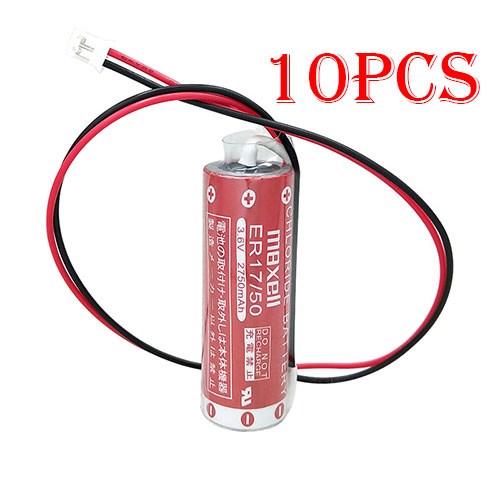
Find the right battery for 10pcs Maxell ER17/50 17/50 with white Plug to solve your power issues. Our MAXELL ER17/50 batteries are manufactured to precisely fit just as your original battery.
We use the highest quality Li-ion cells and components that are lighter weight, charge faster and last longer.
US MAXELL battery shop – Tech-Battery.com ! Shopping with us is safe and secure! 100% Guarantee Quality and Fully Test!
MAXELL ER17/50 Battery For MAXELL – Battery For MAXELL Processor Li-ion 2750mAh 3.6V. Browse our various categories and find out why we have been the go-to source for our customers.
Chemistry: Li-ion
Voltage: 2750mAh
Capacity: 3.6V
Free shipping in most countries. click here to view detailed shipping costs.
We ship to the worldwide,please enquiry shipping & handling if you are out of united states.
What’s the total delivery time? (please use this formula to determine when your order will arrive) total delivery time = packaging time + shipping time.
plug : white Plug(not Compatible balck & brown plug)
Maxell ER17/50 17/50
Package Included: 10pcs ER17/50 batteries
MAXELL ER17/50 MAXELL battery is replacement for 10pcs Maxell ER17/50 17/50 with white Plug. The ER17/50 batteries equivalent is guaranteed to meet or exceed MAXELL original specifications. All MAXELL ER17/50 Battery are brand new, 1 year Warranty, 100% Guarantee Quality and Fully Test!
We deliver quality MAXELL Processor extended batteries online. Purchase your MAXELL Processor battery here.
MAXELL ER17/50 MAXELL Batteries
100% OEM Compatible with your MAXELL Processor.
Lithium Ion battery technology
Convenient and secure online purchasing
Dependable high quality MAXELL batteries
Satisfaction guaranteed or your money back
1 Year Warranty on all MAXELL Processor Replacement Batteries
6 tips to increase ER17/50 MAXELL Battery lifetime
The performance of your MAXELL depends largely on the performance of your battery. And his time of life depends on its users, and that you are. These are the principles that have guided the MAXELL , at the head, so you can optimize the performance of MAXELL Processor battery. New battery still fully charged ER17/50 sold. You must be on the first wheel to be conditioned for optimum performance. Loading and unloading of the battery 4 or 5 times is enough to determine. The memory effect completely to avoid a full charge and discharge the battery, MAXELL ER17/50 twice a month. The dirt on the MAXELL ER17/50 contacts of the battery can power the MAXELL Processor batteries. Clean with alcohol and cotton can look like and function like new. This method is recommended for those using the AC adapter for long periods. We recommend that you use the MAXELL ER17/50 battery at least once in two weeks. Batteries lose its charge when stored for a long time and you need the battery if it does break. If he does not use a length of time, the MAXELL ER17/50 battery will be stored protected from a clean, dry and cool, heat and other metals. A loss of business to charge the battery in time and need a break before reuse. Power Management Features Battery ER17/50 enable the conservation of energy in the battery of MAXELL Processor. You can control the speed of the processor off, or you can adjust the brightness of the LCD screen to a minimum to ensure low power consumption.
Why we have been the go-to source for our customers ?
We stock a wide range of rechargeable batteries for MAXELL Processor. Your MAXELL Tablet PC is part of your everyday life. Successful communications on a MAXELL begin with your battery. When purchasing a replacement battery for your MAXELL MAXELL, dependability and price are what we have to offer. We’ve been supplying reliable, high quality MAXELL batteries for over 10 years. Our goal is to provide high quality aftermarket replacement batteries at a very reasonable price. All of our rechargeable Li-Ion MAXELL batteries are backed by a one year warranty.
What is the run time of MAXELL battery?
MAXELL batteries have two main ratings on them: Volts and Amperes. Because size and weight of batteries is limited when compared to larger batteries such as car batteries, most companies show their ratings with Volts and Milliamperes. One thousand Milliamperes equals 1 Ampere. When buying a battery, select batteries with the most Milliamperes (or mAh). Batteries are also rated by Watt-Hours, perhaps the simplest rating of all. This is found by multiplying the Volts and the Amperes together. For example:
14.4 Volts, 4000mAh (Note: 4000mAh is equal to 4.0 Amperes).
14.4 x 4.0 = 57.60 Watt-Hours
Watt-Hours signifies the energy needed to power one watt for one hour.
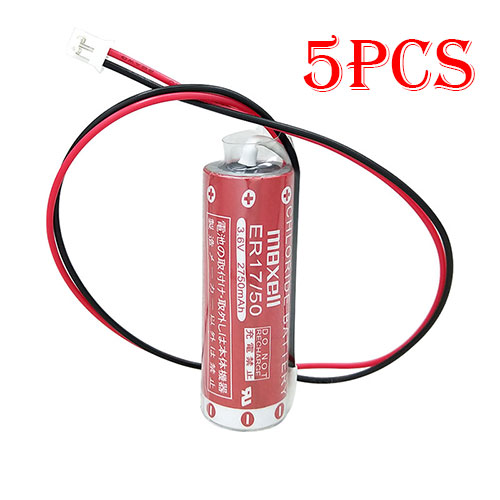
Find the right battery for 5pcs Maxell ER17/50 17/50 with white Plug to solve your power issues. Our MAXELL ER17/50 batteries are manufactured to precisely fit just as your original battery.
We use the highest quality Li-ion cells and components that are lighter weight, charge faster and last longer.
US MAXELL battery shop – Tech-Battery.com ! Shopping with us is safe and secure! 100% Guarantee Quality and Fully Test!
MAXELL ER17/50 Battery For MAXELL – Battery For MAXELL Processor Li-ion 2750mAh 3.6V. Browse our various categories and find out why we have been the go-to source for our customers.
Chemistry: Li-ion
Voltage: 2750mAh
Capacity: 3.6V
Free shipping in most countries. click here to view detailed shipping costs.
We ship to the worldwide,please enquiry shipping & handling if you are out of united states.
What’s the total delivery time? (please use this formula to determine when your order will arrive) total delivery time = packaging time + shipping time.
plug : white Plug(not Compatible balck & brown plug)
Maxell ER17/50 17/50
Package Included: 5pcs ER17/50 batteries
MAXELL ER17/50 MAXELL battery is replacement for 5pcs Maxell ER17/50 17/50 with white Plug. The ER17/50 batteries equivalent is guaranteed to meet or exceed MAXELL original specifications. All MAXELL ER17/50 Battery are brand new, 1 year Warranty, 100% Guarantee Quality and Fully Test!
We deliver quality MAXELL Processor extended batteries online. Purchase your MAXELL Processor battery here.
MAXELL ER17/50 MAXELL Batteries
100% OEM Compatible with your MAXELL Processor.
Lithium Ion battery technology
Convenient and secure online purchasing
Dependable high quality MAXELL batteries
Satisfaction guaranteed or your money back
1 Year Warranty on all MAXELL Processor Replacement Batteries
6 tips to increase ER17/50 MAXELL Battery lifetime
The performance of your MAXELL depends largely on the performance of your battery. And his time of life depends on its users, and that you are. These are the principles that have guided the MAXELL , at the head, so you can optimize the performance of MAXELL Processor battery. New battery still fully charged ER17/50 sold. You must be on the first wheel to be conditioned for optimum performance. Loading and unloading of the battery 4 or 5 times is enough to determine. The memory effect completely to avoid a full charge and discharge the battery, MAXELL ER17/50 twice a month. The dirt on the MAXELL ER17/50 contacts of the battery can power the MAXELL Processor batteries. Clean with alcohol and cotton can look like and function like new. This method is recommended for those using the AC adapter for long periods. We recommend that you use the MAXELL ER17/50 battery at least once in two weeks. Batteries lose its charge when stored for a long time and you need the battery if it does break. If he does not use a length of time, the MAXELL ER17/50 battery will be stored protected from a clean, dry and cool, heat and other metals. A loss of business to charge the battery in time and need a break before reuse. Power Management Features Battery ER17/50 enable the conservation of energy in the battery of MAXELL Processor. You can control the speed of the processor off, or you can adjust the brightness of the LCD screen to a minimum to ensure low power consumption.
Why we have been the go-to source for our customers ?
We stock a wide range of rechargeable batteries for MAXELL Processor. Your MAXELL Tablet PC is part of your everyday life. Successful communications on a MAXELL begin with your battery. When purchasing a replacement battery for your MAXELL MAXELL, dependability and price are what we have to offer. We’ve been supplying reliable, high quality MAXELL batteries for over 10 years. Our goal is to provide high quality aftermarket replacement batteries at a very reasonable price. All of our rechargeable Li-Ion MAXELL batteries are backed by a one year warranty.
What is the run time of MAXELL battery?
MAXELL batteries have two main ratings on them: Volts and Amperes. Because size and weight of batteries is limited when compared to larger batteries such as car batteries, most companies show their ratings with Volts and Milliamperes. One thousand Milliamperes equals 1 Ampere. When buying a battery, select batteries with the most Milliamperes (or mAh). Batteries are also rated by Watt-Hours, perhaps the simplest rating of all. This is found by multiplying the Volts and the Amperes together. For example:
14.4 Volts, 4000mAh (Note: 4000mAh is equal to 4.0 Amperes).
14.4 x 4.0 = 57.60 Watt-Hours
Watt-Hours signifies the energy needed to power one watt for one hour.
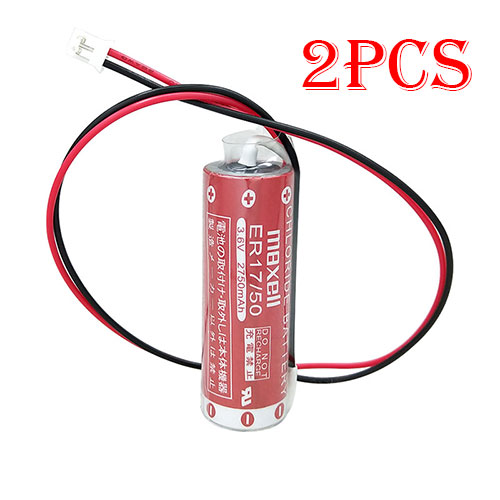
Find the right battery for 2pcs Maxell ER17/50 17/50 with white Plug to solve your power issues. Our MAXELL ER17/50 batteries are manufactured to precisely fit just as your original battery.
We use the highest quality Li-ion cells and components that are lighter weight, charge faster and last longer.
US MAXELL battery shop – Tech-Battery.com ! Shopping with us is safe and secure! 100% Guarantee Quality and Fully Test!
MAXELL ER17/50 Battery For MAXELL – Battery For MAXELL Processor Li-ion 2750mAh 3.6V. Browse our various categories and find out why we have been the go-to source for our customers.
Chemistry: Li-ion
Voltage: 2750mAh
Capacity: 3.6V
Free shipping in most countries. click here to view detailed shipping costs.
We ship to the worldwide,please enquiry shipping & handling if you are out of united states.
What’s the total delivery time? (please use this formula to determine when your order will arrive) total delivery time = packaging time + shipping time.
plug : white Plug(not Compatible balck & brown plug)
Maxell ER17/50 17/50
Package Included: 2pcs ER17/50 batteries
MAXELL ER17/50 MAXELL battery is replacement for 2pcs Maxell ER17/50 17/50 with white Plug. The ER17/50 batteries equivalent is guaranteed to meet or exceed MAXELL original specifications. All MAXELL ER17/50 Battery are brand new, 1 year Warranty, 100% Guarantee Quality and Fully Test!
We deliver quality MAXELL Processor extended batteries online. Purchase your MAXELL Processor battery here.
MAXELL ER17/50 MAXELL Batteries
100% OEM Compatible with your MAXELL Processor.
Lithium Ion battery technology
Convenient and secure online purchasing
Dependable high quality MAXELL batteries
Satisfaction guaranteed or your money back
1 Year Warranty on all MAXELL Processor Replacement Batteries
6 tips to increase ER17/50 MAXELL Battery lifetime
The performance of your MAXELL depends largely on the performance of your battery. And his time of life depends on its users, and that you are. These are the principles that have guided the MAXELL , at the head, so you can optimize the performance of MAXELL Processor battery. New battery still fully charged ER17/50 sold. You must be on the first wheel to be conditioned for optimum performance. Loading and unloading of the battery 4 or 5 times is enough to determine. The memory effect completely to avoid a full charge and discharge the battery, MAXELL ER17/50 twice a month. The dirt on the MAXELL ER17/50 contacts of the battery can power the MAXELL Processor batteries. Clean with alcohol and cotton can look like and function like new. This method is recommended for those using the AC adapter for long periods. We recommend that you use the MAXELL ER17/50 battery at least once in two weeks. Batteries lose its charge when stored for a long time and you need the battery if it does break. If he does not use a length of time, the MAXELL ER17/50 battery will be stored protected from a clean, dry and cool, heat and other metals. A loss of business to charge the battery in time and need a break before reuse. Power Management Features Battery ER17/50 enable the conservation of energy in the battery of MAXELL Processor. You can control the speed of the processor off, or you can adjust the brightness of the LCD screen to a minimum to ensure low power consumption.
Why we have been the go-to source for our customers ?
We stock a wide range of rechargeable batteries for MAXELL Processor. Your MAXELL Tablet PC is part of your everyday life. Successful communications on a MAXELL begin with your battery. When purchasing a replacement battery for your MAXELL MAXELL, dependability and price are what we have to offer. We’ve been supplying reliable, high quality MAXELL batteries for over 10 years. Our goal is to provide high quality aftermarket replacement batteries at a very reasonable price. All of our rechargeable Li-Ion MAXELL batteries are backed by a one year warranty.
What is the run time of MAXELL battery?
MAXELL batteries have two main ratings on them: Volts and Amperes. Because size and weight of batteries is limited when compared to larger batteries such as car batteries, most companies show their ratings with Volts and Milliamperes. One thousand Milliamperes equals 1 Ampere. When buying a battery, select batteries with the most Milliamperes (or mAh). Batteries are also rated by Watt-Hours, perhaps the simplest rating of all. This is found by multiplying the Volts and the Amperes together. For example:
14.4 Volts, 4000mAh (Note: 4000mAh is equal to 4.0 Amperes).
14.4 x 4.0 = 57.60 Watt-Hours
Watt-Hours signifies the energy needed to power one watt for one hour.
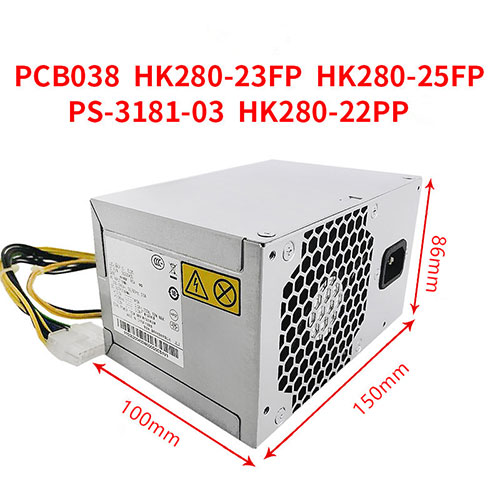
The LENOVO HK280-23FP Servers charger from tech-battery.com delivers power when you need it and where you need it. It has been specially designed to meet the power needs of your LENOVO Servers and will help you power up your Servers in the office, business trips or vacations. Our HK280-23FP Servers Adapter is high quality and 1 year warranty. You can get this discount LENOVO HK280-23FP Servers Power Supply with Low price. We also can ship HK280-23FP Adapter worldwide.
DC Output:
AC Input:
Power: 180W
* Please ensure the product(s) that you are going to buy fits the brand, model and part number of your device. Placing order is easy: Add To Cart—> Fill Shipping information—-> Check out—->Finished. An email include order detais will be sent out after you check out. Tracking order is easy: An email will be sent out after your order shipping. You can get the Tracking Number, the Tracking Url with order id on your email.
REPLACES THE FOLLOWING PRODUCTS:
HK280-23FP HK280-25FP HK280-22PP PCB037 PCBO37 PCB038 PS-3181-03PE-3181-01 and other models(Please leave a message for the specified model)
FITS THE FOLLOWING DEVICES:
Power interface: 14p (motherboard) + 4p (CPU)
Lenovo Q85 Q87 Q77 Q75 Lenovo H5050,H5055,D5050,F5050,T530 M2610n,M4500,M4550,M4800n,T4900,M6300, Used in M6400,M6475,A6800t,M8400 and other models
HK280-23FP ac adapter not working?
When the HK280-23FP AC adapter (charger) fails to work, it will neither charge the Servers battery nor provide power to operate the Servers without battery power. Power issues on a Servers are compounded because a Servers has two power sources: AC adapter (charger) & battery. When HK280-23FP power is not available, power is provided by the Servers battery.
If you’re having issues with your HK280-23FP adapter not charging your Servers, please try to follow these steps to solve the problem.
Inspect the HK280-23FP AC adapter, cables and adapter (DC) port on the Servers for damages
Unplug the HK280-23FP AC adapter from the wall outlet.
Disconnect any external peripherals connected to the Servers.
Press and hold the Power button for 30 seconds to drain a residual power from the Servers.
Plug the HK280-23FP AC adapter into the Servers.
Turn on the Servers. If your Servers still can’t strat, you need a new HK280-23FP ac adapter.
11 Tips On Choosing The Correct HK280-23FP Servers Charger
It is not difficult to find the correct HK280-23FP Servers charger if you are ready to do a little research. Many people end up purchasing wrong Servers chargers from the internet simply because they do not set aside enough time to look for the correct information. To help you in this regard, the following is a compilation of some important tips on finding the right HK280-23FP charger for your Servers:
1. Before you make up your mind to buy a new charger, make sure you check the HK280-23FP Servers power supply and detachable wires for any faults. Just make sure that your charger is indeed faulty before you decide to place an order either online or offline.
2. Serverss in a series may or may not have the same HK280-23FP charger. Different models manufactured by a company have different specifications. Always keep the compatibility aspect in mind while making such purchases.
3. You must scout for the correct information. Finding Servers chargers can be an extremely convenient process if you have the right information. This information can be found on your Servers or the old Servers charger very easily. Note down the manufacturer’s information labelled on your old HK280-23FP charger. Use this information when you perform an online search.
4. If you are going to purchase from a local computer or electronics store, look carefully at the list of all computer models compatible with a HK280-23FP charger under consideration. Servers chargers generally come with a list of various Servers makes.
5. Turn your Servers face down and note the product information stamped by the manufacturer. These specs are provided on different parts of the Servers. Look for the product specification stamp that reads something along the lines of ‘AC Adapter.’ That is where you can easily find the correct model number of all chargers.
6. Make sure you have the right pin connectors while purchasing a HK280-23FP charger for your Servers. These pins should be compatible with your existing wall sockets. Charging your Servers can be a bother with a new charger if its pins do not fit into your room’s wall sockets.
7. You can find a Servers charger with additional features. These days, it is possible to find chargers that trip the Servers power supply as soon as there is a voltage fluctuation. These chargers are great, especially if you live in an area where power fluctuations are frequent.
8. It is possible to find a universal charger nowadays since many manufactures are selling one-for-all chargers. These Servers chargers are fine as long as you find one that is compatible with your Servers.
9. Always check the voltage, input, and output before buying any charger. These details are labelled on the product packaging. Make sure this information is in keeping with the specs of your Servers.
10. Do not be tempted by unbelievably low prices on some websites as you may end up placing an order for a duplicate product. Always buy Servers chargers from a reputed or professional site.
11. In principle, the more authentication the more reliable the adapter is. Don’t buy a compatible HK280-23FP adapter with few certifications, it will hurt your machine.
How to do when ac adapter buzzing noise?
Buzzing in an AC adapter can mean a number of things, but often it is related to a damaged adapter, poor grounding or phasing issues with your power. Figuring out exactly why your AC adapter is buzzing will probably require some troubleshooting, but in the end you can probably isolate the problem and get rid of the frustrating noise.
Check for any obvious damage to the adapter. If any of the outer rubber coating has been damaged so that the conductor inside is exposed, this could allow interference to enter the current and cause a buzzing sound. Untie any knots if the cord has become knotted. Make sure that the connection where the cord meets the actual box adapter is still intact; this sometimes can become damaged and make a poor connection.
Repair any damage with electrical tape. Cover all exposed areas.
Plug the AC adapter into the same outlet as the other equipment you are using. Some apartments and houses have multiple phases of power that can create audio interference if mixed together, so running everything off of the same phase might get rid of the buzz.
Run your equipment through a surge protecting power strip or, if necessary, a power conditioner. Audio and video equipment is especially susceptible to interference caused by ground looping. A power conditioner will smooth out the current and protect your equipment from any peaks or spikes in current.
Why laptop adapter light blinks?
Question description:
A few days ago studying in the UH library, I noticed my laptop all of a sudden wasn’t receiving power and the light my AC adapter was blinking. After unplugging it from the laptop, that is, from the power jack, the AC adapter’s light turned solid green again. Then, as you might guess, after plugging it back into the laptop’s power jack, the light on the adapter would again start blinking and no power would circulate.
After brief research, I learned that I could take the battery out and press the power button to relieve all currents and that after that everything would work fine. Well, I did get it to work, however not my this method. After trying it several times and failing, I figured I’d just use the laptop without the battery, since it powered the laptop without the battery in it. Then the idea of just placing the battery back in the laptop while I was receiving power came up. So as the laptop is working I placed the battery in and SUCCESS the AC adapter no longer was blinking and it was successfully transferring power to the laptop and battery.
Now, however, several days later, in a similar library, I noticed I wasn’t receiving power again. When I unplugged the adapter from the laptop, the light on the adapter continued to blink. This was not the case previously. Previously, the light on the adapter would only blink when plugged into the laptop and would turn solid green when I disconnected it from the laptop. Now however, without the laptop ever coming into the picture, the AC adapter, by itself, not plugged into anything other than the wall, constantly blinks. The laptop receives no power, and I’m stuck.
Also, used my sisters AC adapter, she has a similar laptop, and everything worked fine. Meanwhile, my AC adapter, while plugged into the same power jack in the wall, just blinks.. and blinks…
someone help.
Answer:
The AC adapter’s light turned solid green means ac adapter have a solid out put. When the light blinking, it means that the adapter is trying to output again and again, and it keeps flashing to indicate that the output was failed. You need check laptop dc jack or a MOSFET on laptop motherboard. Usually one laptop model develops this kind of fault and then many of the same model start to fail.
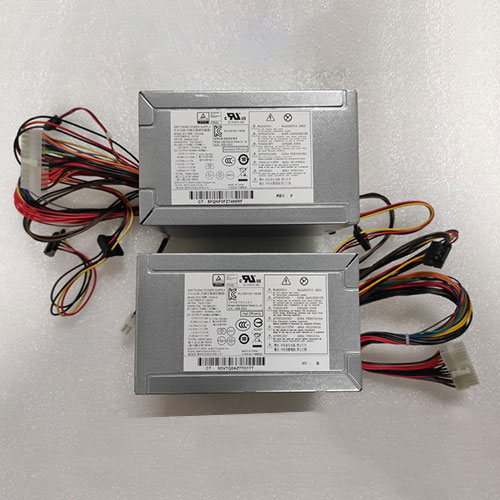
The HP PCD010 Servers charger from tech-battery.com delivers power when you need it and where you need it. It has been specially designed to meet the power needs of your HP Servers and will help you power up your Servers in the office, business trips or vacations. Our PCD010 Servers Adapter is high quality and 1 year warranty. You can get this discount HP PCD010 Servers Power Supply with Low price. We also can ship PCD010 Adapter worldwide.
DC Output: 100-240V ~50-60Hz 6.0A
AC Input: 180W;+12Vb=10A;-12V=0.3A;+5.08Vsb=1.5A
Power: 180W
* Please ensure the product(s) that you are going to buy fits the brand, model and part number of your device. Placing order is easy: Add To Cart—> Fill Shipping information—-> Check out—->Finished. An email include order detais will be sent out after you check out. Tracking order is easy: An email will be sent out after your order shipping. You can get the Tracking Number, the Tracking Url with order id on your email.
When the PCD010 AC adapter (charger) fails to work, it will neither charge the Servers battery nor provide power to operate the Servers without battery power. Power issues on a Servers are compounded because a Servers has two power sources: AC adapter (charger) & battery. When PCD010 power is not available, power is provided by the Servers battery.
If you’re having issues with your PCD010 adapter not charging your Servers, please try to follow these steps to solve the problem.
Inspect the PCD010 AC adapter, cables and adapter (DC) port on the Servers for damages
Unplug the PCD010 AC adapter from the wall outlet.
Disconnect any external peripherals connected to the Servers.
Press and hold the Power button for 30 seconds to drain a residual power from the Servers.
Plug the PCD010 AC adapter into the Servers.
Turn on the Servers. If your Servers still can’t strat, you need a new PCD010 ac adapter.
11 Tips On Choosing The Correct PCD010 Servers Charger
It is not difficult to find the correct PCD010 Servers charger if you are ready to do a little research. Many people end up purchasing wrong Servers chargers from the internet simply because they do not set aside enough time to look for the correct information. To help you in this regard, the following is a compilation of some important tips on finding the right PCD010 charger for your Servers:
1. Before you make up your mind to buy a new charger, make sure you check the PCD010 Servers power supply and detachable wires for any faults. Just make sure that your charger is indeed faulty before you decide to place an order either online or offline.
2. Serverss in a series may or may not have the same PCD010 charger. Different models manufactured by a company have different specifications. Always keep the compatibility aspect in mind while making such purchases.
3. You must scout for the correct information. Finding Servers chargers can be an extremely convenient process if you have the right information. This information can be found on your Servers or the old Servers charger very easily. Note down the manufacturer’s information labelled on your old PCD010 charger. Use this information when you perform an online search.
4. If you are going to purchase from a local computer or electronics store, look carefully at the list of all computer models compatible with a PCD010 charger under consideration. Servers chargers generally come with a list of various Servers makes.
5. Turn your Servers face down and note the product information stamped by the manufacturer. These specs are provided on different parts of the Servers. Look for the product specification stamp that reads something along the lines of ‘AC Adapter.’ That is where you can easily find the correct model number of all chargers.
6. Make sure you have the right pin connectors while purchasing a PCD010 charger for your Servers. These pins should be compatible with your existing wall sockets. Charging your Servers can be a bother with a new charger if its pins do not fit into your room’s wall sockets.
7. You can find a Servers charger with additional features. These days, it is possible to find chargers that trip the Servers power supply as soon as there is a voltage fluctuation. These chargers are great, especially if you live in an area where power fluctuations are frequent.
8. It is possible to find a universal charger nowadays since many manufactures are selling one-for-all chargers. These Servers chargers are fine as long as you find one that is compatible with your Servers.
9. Always check the voltage, input, and output before buying any charger. These details are labelled on the product packaging. Make sure this information is in keeping with the specs of your Servers.
10. Do not be tempted by unbelievably low prices on some websites as you may end up placing an order for a duplicate product. Always buy Servers chargers from a reputed or professional site.
11. In principle, the more authentication the more reliable the adapter is. Don’t buy a compatible PCD010 adapter with few certifications, it will hurt your machine.
How to do when ac adapter buzzing noise?
Buzzing in an AC adapter can mean a number of things, but often it is related to a damaged adapter, poor grounding or phasing issues with your power. Figuring out exactly why your AC adapter is buzzing will probably require some troubleshooting, but in the end you can probably isolate the problem and get rid of the frustrating noise.
Check for any obvious damage to the adapter. If any of the outer rubber coating has been damaged so that the conductor inside is exposed, this could allow interference to enter the current and cause a buzzing sound. Untie any knots if the cord has become knotted. Make sure that the connection where the cord meets the actual box adapter is still intact; this sometimes can become damaged and make a poor connection.
Repair any damage with electrical tape. Cover all exposed areas.
Plug the AC adapter into the same outlet as the other equipment you are using. Some apartments and houses have multiple phases of power that can create audio interference if mixed together, so running everything off of the same phase might get rid of the buzz.
Run your equipment through a surge protecting power strip or, if necessary, a power conditioner. Audio and video equipment is especially susceptible to interference caused by ground looping. A power conditioner will smooth out the current and protect your equipment from any peaks or spikes in current.
Why laptop adapter light blinks?
Question description:
A few days ago studying in the UH library, I noticed my laptop all of a sudden wasn’t receiving power and the light my AC adapter was blinking. After unplugging it from the laptop, that is, from the power jack, the AC adapter’s light turned solid green again. Then, as you might guess, after plugging it back into the laptop’s power jack, the light on the adapter would again start blinking and no power would circulate.
After brief research, I learned that I could take the battery out and press the power button to relieve all currents and that after that everything would work fine. Well, I did get it to work, however not my this method. After trying it several times and failing, I figured I’d just use the laptop without the battery, since it powered the laptop without the battery in it. Then the idea of just placing the battery back in the laptop while I was receiving power came up. So as the laptop is working I placed the battery in and SUCCESS the AC adapter no longer was blinking and it was successfully transferring power to the laptop and battery.
Now, however, several days later, in a similar library, I noticed I wasn’t receiving power again. When I unplugged the adapter from the laptop, the light on the adapter continued to blink. This was not the case previously. Previously, the light on the adapter would only blink when plugged into the laptop and would turn solid green when I disconnected it from the laptop. Now however, without the laptop ever coming into the picture, the AC adapter, by itself, not plugged into anything other than the wall, constantly blinks. The laptop receives no power, and I’m stuck.
Also, used my sisters AC adapter, she has a similar laptop, and everything worked fine. Meanwhile, my AC adapter, while plugged into the same power jack in the wall, just blinks.. and blinks…
someone help.
Answer:
The AC adapter’s light turned solid green means ac adapter have a solid out put. When the light blinking, it means that the adapter is trying to output again and again, and it keeps flashing to indicate that the output was failed. You need check laptop dc jack or a MOSFET on laptop motherboard. Usually one laptop model develops this kind of fault and then many of the same model start to fail.
Chuwi has unleashed a new mini-PC, the CoreBox Pro. The new machine, which can be ordered for US$439 directly from Chuwi, measures 173 x 158 x 73 mm – dimensions that correspond to a volume of two litres. The CoreBox Pro comes with an Intel Core i3-1005G1 processor and 12 GB of LPDDR4 RAM. It is unclear if the CoreBox Pro has dual-channel RAM, but we do know that its processor has two core, four threads and a boost clock speed of 3.4 GHz.
Additionally, Chuwi has equipped the device with a 256 GB PCIe NVMe SSD, Wi-Fi 6 connectivity, two video outputs and four USB 3.0 Type-A ports. Moreover, the CoreBox Pro has dual Ethernet ports, dedicated headphone and microphone jacks and a solitary Thunderbolt 3 port.
The CoreBox Pro comes preloaded with Windows 10 Home and includes a power adapter in the box. The machine should weigh around 900 g, and has a microSD card reader for removable storage, although we are unsure where.